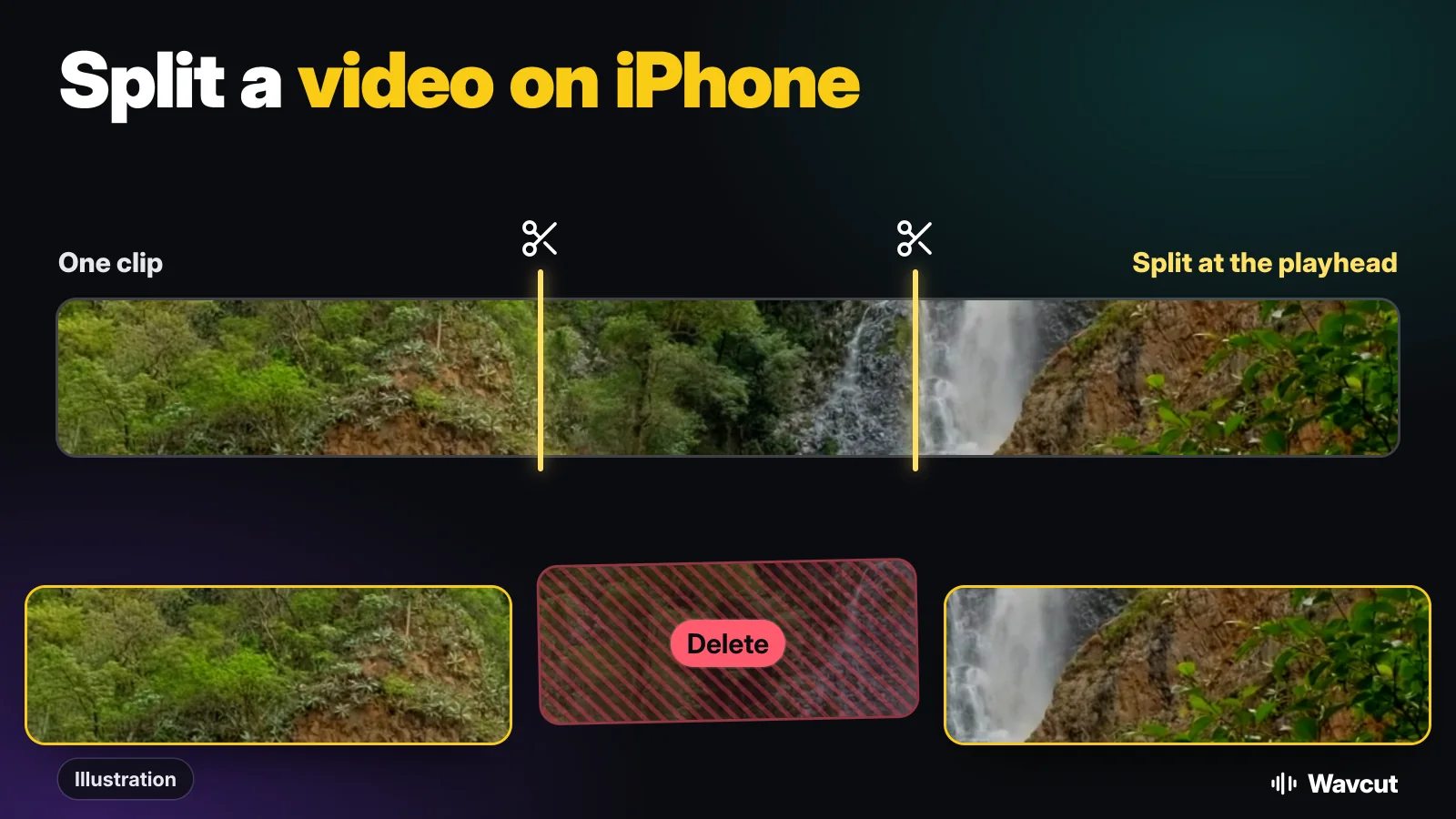
To split a video on iPhone, first decide what you want at the end. If you want two separate videos in your library, the Photos app can do it with no extra app. If you want to cut a piece out of the middle, or change one part of a clip on its own, you split the clip inside an editor such as iMovie or Wavcut. Both ways are below, step by step.
What does it mean to split a video?
People mean one of two things:
- Two files from one. A long recording becomes two shorter videos you can send or post on their own.
- Two clips inside one edit. You cut a clip at a point so each side can be deleted, muted, zoomed or moved by itself, and the edit still exports as one video.
Photos only does the first. iMovie and Wavcut do the second.
How do you split a video into two videos in Photos?
Photos has no Split button, but its trim tool can save a trimmed copy and leave the original alone. Apple's trim steps, done twice:
- Open the Photos app and tap the video.
- Tap the Edit button.
- Drag the right end of the frame viewer below the video to where the first part should stop.
- Tap Done, then tap Save Video as New Clip. The first part is now its own video, and the original is untouched.
- Open the original again, tap Edit, and drag the left end of the frame viewer to where the first part stopped.
- Tap Done, then Save Video as New Clip again.
You now have three videos: the two parts and the full original, which you can delete if you no longer need it. Do not pick plain Save Video on the first pass, or the original itself is trimmed and the second part is gone until you tap Revert. Apple also notes that a video saved as a new clip cannot be reverted to the original, so keep the original until both parts look right.
How do you split a clip in iMovie?
Apple's free iMovie splits clips on its timeline. From Apple's iMovie for iPhone guide:
- Open a movie project with the video on the timeline.
- Scroll the timeline so the playhead (the white line) sits where you want to split the clip.
- Tap the clip, tap the Actions button, then tap Split. You can also tap the clip and swipe down over the playhead.
To remove a section from the middle, split where it starts, split again where it ends, tap the piece in between and tap Delete. iMovie then saves the whole project as one video. Pinch open on the timeline first if you need a precise cut.
How do you split a clip in Wavcut?
In Wavcut, Split and Delete lead the toolbar whenever a clip is selected:
- Open your project and tap the clip on the timeline to select it.
- Drag the timeline so the playhead sits where you want the cut.
- Tap Split. The clip becomes two clips that meet at the playhead.
- To remove a middle section, split again at its end, select the middle piece and tap Delete. The clips after it slide left, so no gap is left behind.
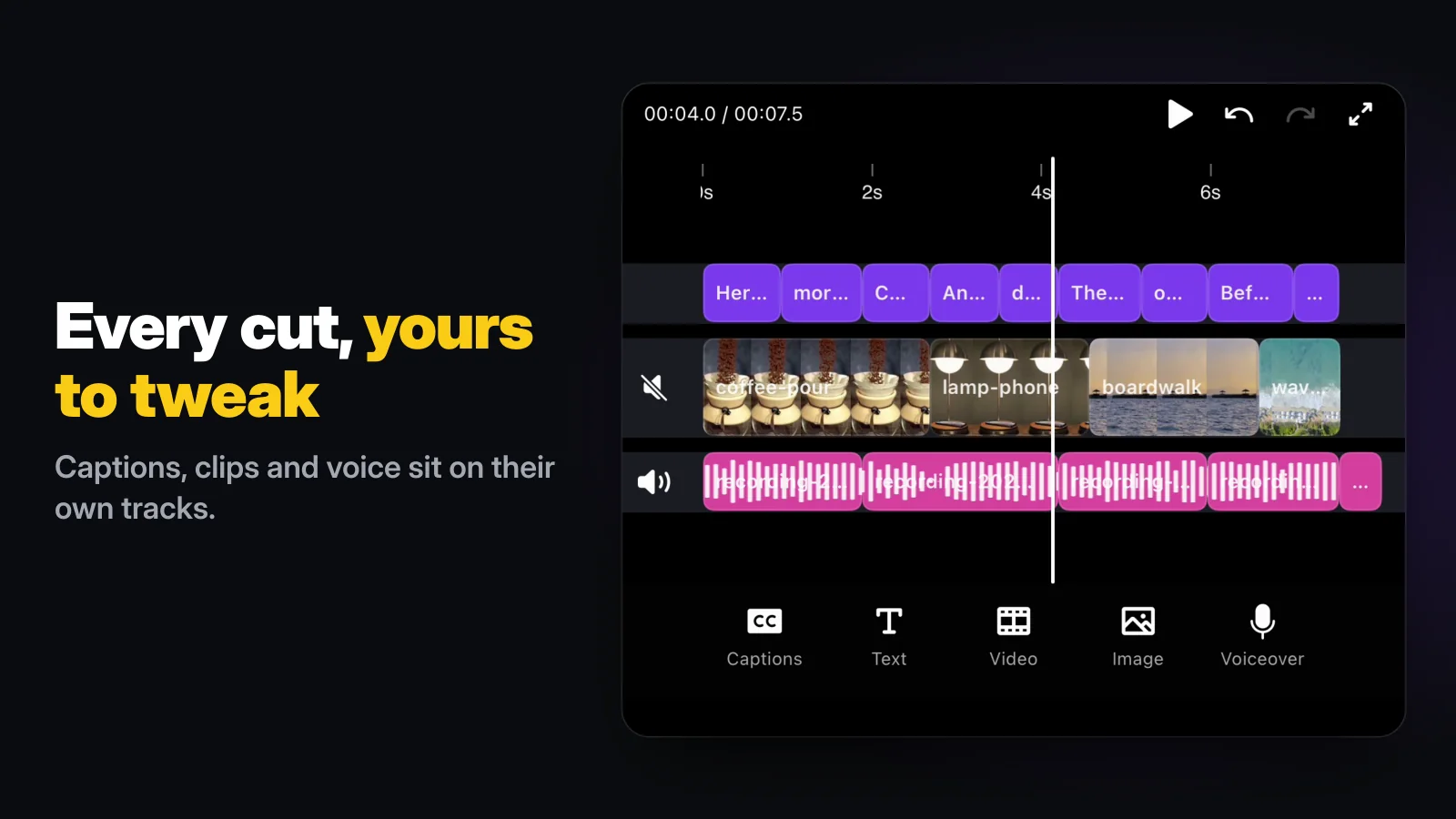
Split works on any clip you select: the main video, b-roll, music, a voice-over, a text box or a caption. Undo puts the clip back together if you cut in the wrong place.
What can you do with each piece after a split?
Once a moment is a clip of its own, every per-clip tool applies to that piece only:
- Mute it. Silence a cough or a noisy stretch and keep the rest; see how to mute a video on iPhone.
- Zoom it. Punch in on one line of a talking take; see how to zoom in on a video on iPhone.
- Delete it. Take out a stumble, a false start or a long pause.
If the parts you keep splitting out are pauses, you do not need to do it by hand. Wavcut's silence remover finds every pause of half a second or longer on the iPhone and cuts them in one pass.
Which way should you split?
Checked on November 21, 2026, against Apple's guides and the app itself:
| App | How | Two separate files? | Cut out the middle? | Cost |
|---|---|---|---|---|
| Photos | Trim, Save Video as New Clip, twice | Yes | No, start and end only | Built in |
| iMovie | Playhead, Actions, Split | No, the project saves as one video | Yes, split twice and Delete | Free |
| Wavcut | Select the clip, playhead, Split | No, the edit exports as one video | Yes, split twice and Delete; the gap closes | Free plan; HD and 4K exports carry a watermark |
For two shareable files, use Photos. For a clean edit with a section removed, use iMovie or Wavcut. If the video is a talking take, Wavcut also adds captions and cuts the pauses in the same project; our guide on how to edit a video on iPhone walks through the whole workflow, and how to combine videos on iPhone covers the opposite job.
What are the limits?
Wavcut is iPhone-only for now and has no speed control. It cannot save the pieces of a split as separate videos: the export is always the whole timeline. On Free, SD (720p) exports are clean and HD and 4K carry a watermark. Weighing editors? Read Wavcut vs CapCut.