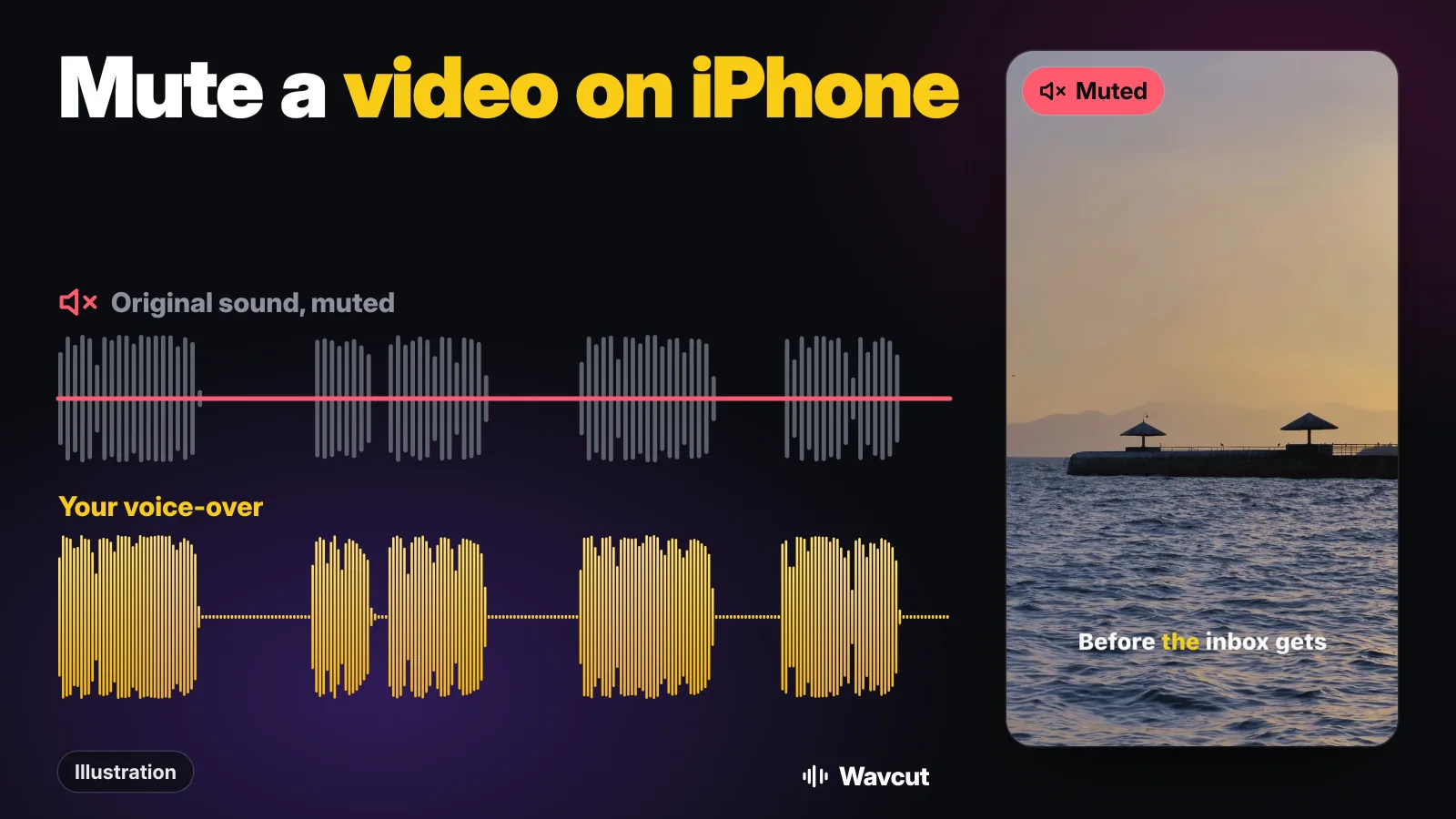
To mute a video on iPhone, open it in Photos, tap Edit, tap the speaker button in the top left and tap Done: the video now plays silent everywhere you share it. That removes all the sound from the whole video. If you only want one clip quiet, or you want to put your own voice where the noise was, use iMovie or an editor like Wavcut. Here is each route, what it changes and how to undo it.
How do you mute a video in the Photos app?
Photos has a one-tap mute for video. Apple's own guide to editing video in Photos does not mention it (it covers trimming, playback speed and Audio Mix), so these steps follow How-To Geek's walkthrough:
- Open the video in the Photos app and tap Edit.
- Tap the speaker icon in the upper-left corner. "With the audio for the video removed, the speaker icon will change to a speaker icon with a diagonal strike mark through it."
- Tap Done. In the Photos toolbar the video now shows a grayed-out speaker, which "means that the video has no audio component to it."
Nothing is lost. "If you want to restore the sound, reopen the editing window and tap the speaker icon again." Apple's guide adds the general rule for video edits in Photos: to undo edits after you save, open the video, tap Edit, then tap Revert.
One catch from the same guide: if the speaker in the toolbar looks crossed out rather than grayed out, your phone is simply silenced. Turn the ringer back on and check the icon before you send the video.
Can Photos lower background noise instead of muting everything?
On recent iPhones, yes. Apple's guide says that when you record with iPhone 16 or later using Spatial Audio, you can use Audio Mix to customize the sound: open the video, tap Edit, tap Audio Mix and choose Standard, In-Frame ("Reduce sounds and voices from sources not visible in the video frame"), Studio ("Reduce background sounds and reverb") or Cinematic. A slider under the options sets how strong the effect is. Tap Done.
Audio Mix keeps the voices and turns the rest down. It is the better choice when you filmed yourself talking in a noisy place and the words are worth keeping.
How do you mute a video in iMovie?
Apple's free iMovie mutes one clip at a time, which matters when your project has several. From Apple's iMovie for iPhone guide:
- Tap the clip in the timeline so the inspector opens at the bottom.
- Tap the Audio button.
- "Tap the Mute button next to the volume slider. When the clip is muted, tap the Mute button again to turn sound on."
"When you turn off the sound for a video clip, a mute icon also appears in the upper-left corner of the clip in the timeline." If you want the sound quieter rather than gone, drag the volume slider left instead.
How do you mute a video in Wavcut?
Wavcut mutes per clip too, and the buttons appear as soon as a clip is selected:
- Open your project and tap the video clip on the timeline.
- Tap Mute in the toolbar (the speaker icon). The label changes to Unmute; tap it again to bring the sound back.
- For a quieter clip instead of a silent one, tap Volume and drag the slider. Dragging it all the way down also counts as mute.
- Export. The muted clip plays silent in the finished video.
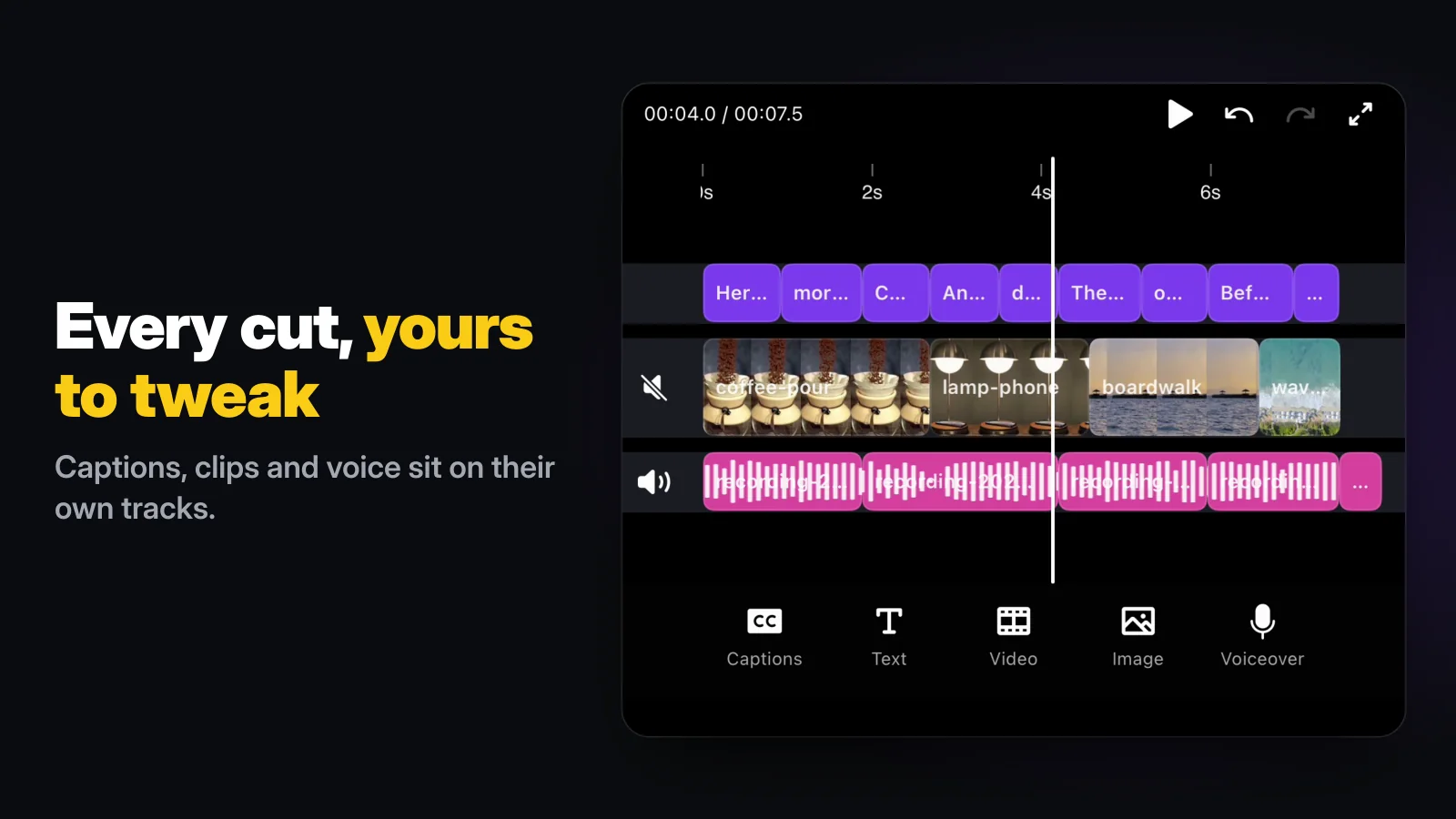
The same Mute button works on audio clips and voice-over takes, so you can silence a bad take without deleting it.
How do you put your own voice where the sound was?
Muting is usually step one; the real goal is a video that says what you want. In Wavcut, with the clip muted, tap Voiceover, read your script and tap stop. The take lands on its own track under the picture, and captions can be made from it (on the Free plan, 3 videos a month, transcribed on the phone).
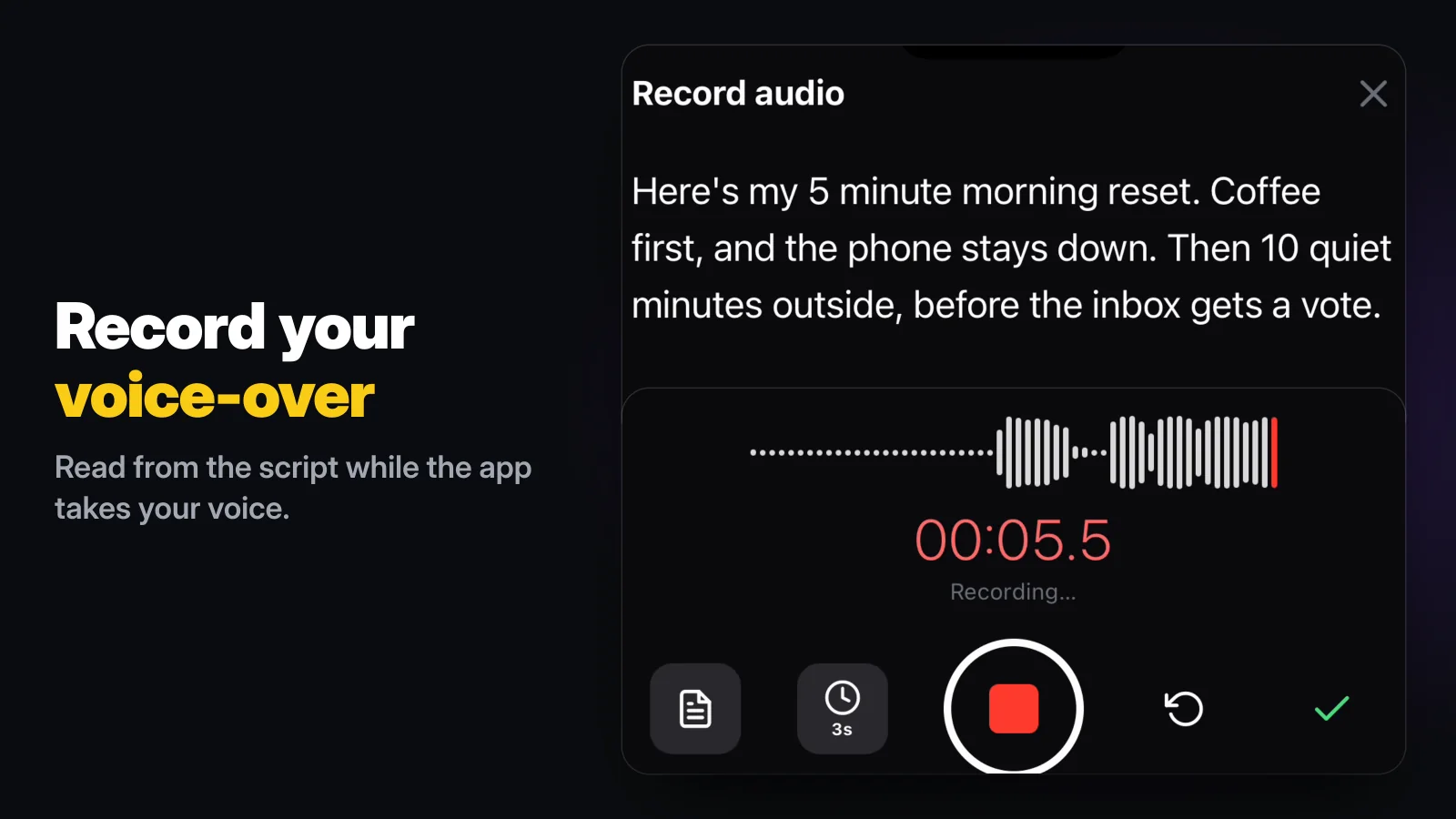
Wavcut's Audio Only mode is the same idea in one step: you record or pick the narration first, and the b-roll clips it lays over your voice arrive muted, so only you are heard. In our sample edit, the one in the App Store preview, a 12.1-second take came back with 5 seconds of dead air cut, 9 captions and 4 b-roll clips placed, none of them making a sound. Our voice-over guide covers the recording itself, including the iMovie way.
How do you mute only part of a video?
Cut the clip so the noisy part is a clip of its own, then mute that piece. In Wavcut: select the clip, move the playhead to where the noise starts, tap Split, do it again where it ends, select the middle piece and tap Mute. iMovie works the same way after a split, because its Mute button also applies to one clip. Photos cannot do this; its speaker button covers the whole video.
Which way should you mute?
Checked on November 16, 2026, against Apple's guides, How-To Geek and the app itself:
| App | What it does | Whole video or one clip? | Undo | Cost |
|---|---|---|---|---|
| Photos, speaker button | Removes all sound | Whole video | Tap the speaker again, or Revert | Built in |
| Photos, Audio Mix | Turns down background sound, keeps voices | Whole video; iPhone 16 or later, Spatial Audio | Choose Standard, or Revert | Built in |
| iMovie | Mutes a clip, or lowers its volume | Per clip | Tap Mute again | Free |
| Wavcut | Mutes a clip, lowers its volume, records a voice-over over it | Per clip | Tap Unmute | Free plan; HD and 4K exports carry a watermark |
For a clip you just want silent before you send it, Photos is the fastest. For a talking video with one noisy stretch, split and mute in iMovie or Wavcut. If the whole take is yours to narrate again, Wavcut also cuts the pauses with its silence remover and captions the new voice in the same pass; see how to edit a video on iPhone for the whole workflow.
What are the limits?
Wavcut is iPhone-only for now and has no speed control. Mute in Wavcut is on or off for the whole clip it is on; to silence one stretch, split first. On Free, SD (720p) exports are clean and HD and 4K carry a watermark, and on-device captions cover 3 videos a month. Audio Mix in Photos needs an iPhone 16 or later and a video recorded with Spatial Audio. If you are also reframing the clip, our zoom guide uses the same select, Split and pinch steps. Weighing editors? Read Wavcut vs CapCut.