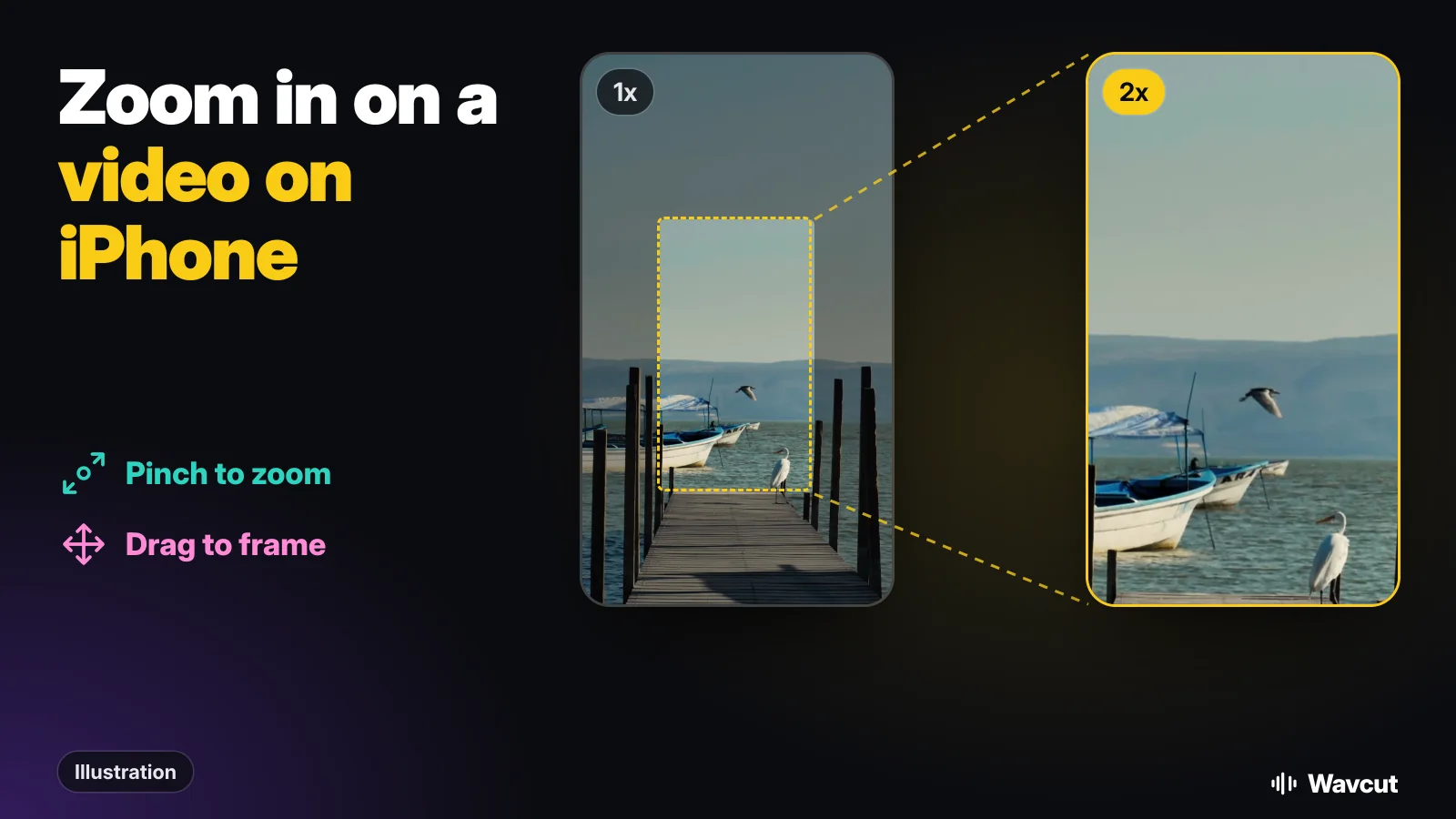
To zoom in on a video on iPhone after you have recorded it, you crop it: in Photos, iMovie or an editor like Wavcut, you pinch the picture larger and drag it into place, and the export keeps only that part of the frame. Below are the exact steps in each app, how to zoom in on one moment instead of the whole clip, and what a zoom does to the picture quality.
Can you zoom in on a video after recording it?
Yes, with one catch. A video file holds a fixed number of pixels, so a zoom after the fact enlarges a smaller part of the frame; it cannot add detail the camera never captured. If you know you want a close shot, zoom while you record. If you only noticed later, every method below works on a clip already in your library.
How do you zoom in on a video in the Photos app?
Photos has no zoom button for video, but its crop tool does the same job. Apple's guide on cropping photos and videos gives these steps:
- Open the Photos app and tap the video to open it.
- Tap the Edit button, then tap the Crop button.
- "Drag the rectangle corners to enclose the area you want to keep in the image, or pinch open or closed."
- For a set shape, tap the Aspect Ratio button and pick an option such as Square or 9:16.
- Tap Done. If you do not like it, tap Cancel, then Discard Changes.
The crop applies to the whole video, from the first frame to the last. It is not permanent either: open the video, tap Edit, then Revert to get the full frame back.
How do you zoom in on a video in iMovie?
Apple's free iMovie has a zoom control for each video clip. From Apple's iMovie for iPhone guide:
- Open a movie project in iMovie.
- Tap to select a video clip in the timeline.
- Tap the Zoom Control button in the viewer.
- "Pinch to zoom in or out, then drag the image in the viewer to frame it the way you want."
- Tap the Play button to preview it.
The zoom belongs to the clip you selected. The slow push-in Apple calls the Ken Burns effect is a separate control that works on photos only, not on video clips.
How do you zoom in on a video in Wavcut?
In Wavcut the zoom is a gesture on the preview, the same one you use for text and images:
- Open your project and tap the video clip on the timeline to select it.
- Pinch open on the preview to zoom in, up to 10x, or pinch closed to zoom back out.
- Drag the picture to put the subject where you want it.
- Export. The zoom is in the file, at the aspect ratio you choose.
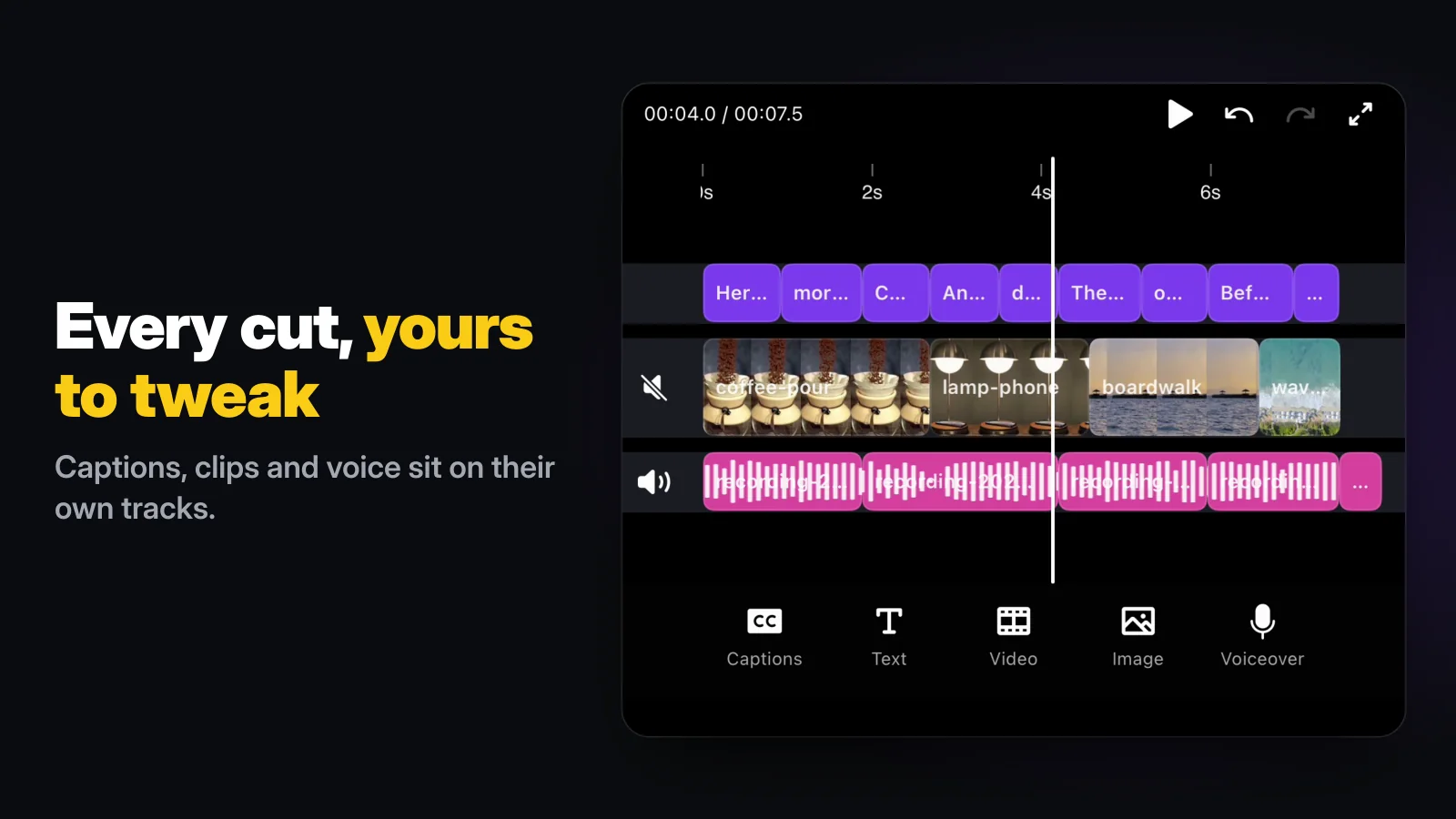
Playback pauses while your fingers are on the screen and starts again when you let go, so you can frame the shot without chasing a moving picture.
How do you zoom in on only part of a video?
Every zoom above holds for a whole clip. To zoom on one moment, cut the clip first so that moment is a clip of its own. In Wavcut:
- Select the clip, move the playhead to where the zoom should start and tap Split. Do it again where it should end.
- Select the middle piece.
- Pinch to zoom in on that piece only, and drag to frame it.
iMovie works the same way once the clip is split there, since its Zoom Control also applies to one clip at a time.
This is the "punch-in" you see in talking-head videos: the speaker suddenly fills more of the frame on the line that matters. It also hides a jump cut. When pauses are removed from a single take, the framing changes at the cut, so the join reads as a new shot instead of a skip. Wavcut's silence remover makes those cuts for you; a zoom on every second piece is a quick way to smooth them.
Does zooming in on a video lower the quality?
It does, by plain arithmetic. A 2x zoom shows half the width and half the height of the frame, so a quarter of the pixels fill the same screen. Here is what is left of the frame at each zoom:
| Recorded at | Full frame | After a 2x zoom | After a 3x zoom |
|---|---|---|---|
| 4K | 3840 x 2160 | 1920 x 1080 | 1280 x 720 |
| HD (1080p) | 1920 x 1080 | 960 x 540 | 640 x 360 |
Two things follow. If you expect to zoom later, record in 4K: a 2x zoom on 4K still leaves a full 1080p picture. And match the zoom to your export. On Wavcut's free plan, SD (720p) exports carry no watermark, so even a 3x zoom on a 4K clip fills an SD export without upscaling.
How do you zoom while recording on iPhone?
This keeps the most detail, because the camera does the zooming. In Apple's steps for recording video, while the Camera app is recording you can "Pinch the screen to zoom in and out," or tap .5x, 1x, 2x, 3x, 4x, 5x or 8x, depending on your model. "For a more precise zoom control, touch and hold 1x, then slide the dial."
Which way should you zoom?
Checked on November 15, 2026, against Apple's guides and the app itself:
| App | When | How | One moment only? | Cost |
|---|---|---|---|---|
| Camera | While recording | Pinch, tap 1x, 2x and so on, or slide the dial | Yes, you zoom live | Built in |
| Photos | After | Edit, Crop, pinch or drag the corners | No, the whole video | Built in |
| iMovie | After | Select the clip, Zoom Control, pinch and drag | Per clip; split it first | Free |
| Wavcut | After | Select the clip, pinch the preview, drag | Per clip; Split it first | Free plan; HD and 4K exports carry a watermark |
For one video you want tighter all the way through, Photos is the fastest. For a punch-in on one line, use iMovie or Wavcut. If the video is a talking take, Wavcut also cuts the pauses and adds captions in the same pass; see how to edit a video on iPhone for the whole workflow.
What are the limits?
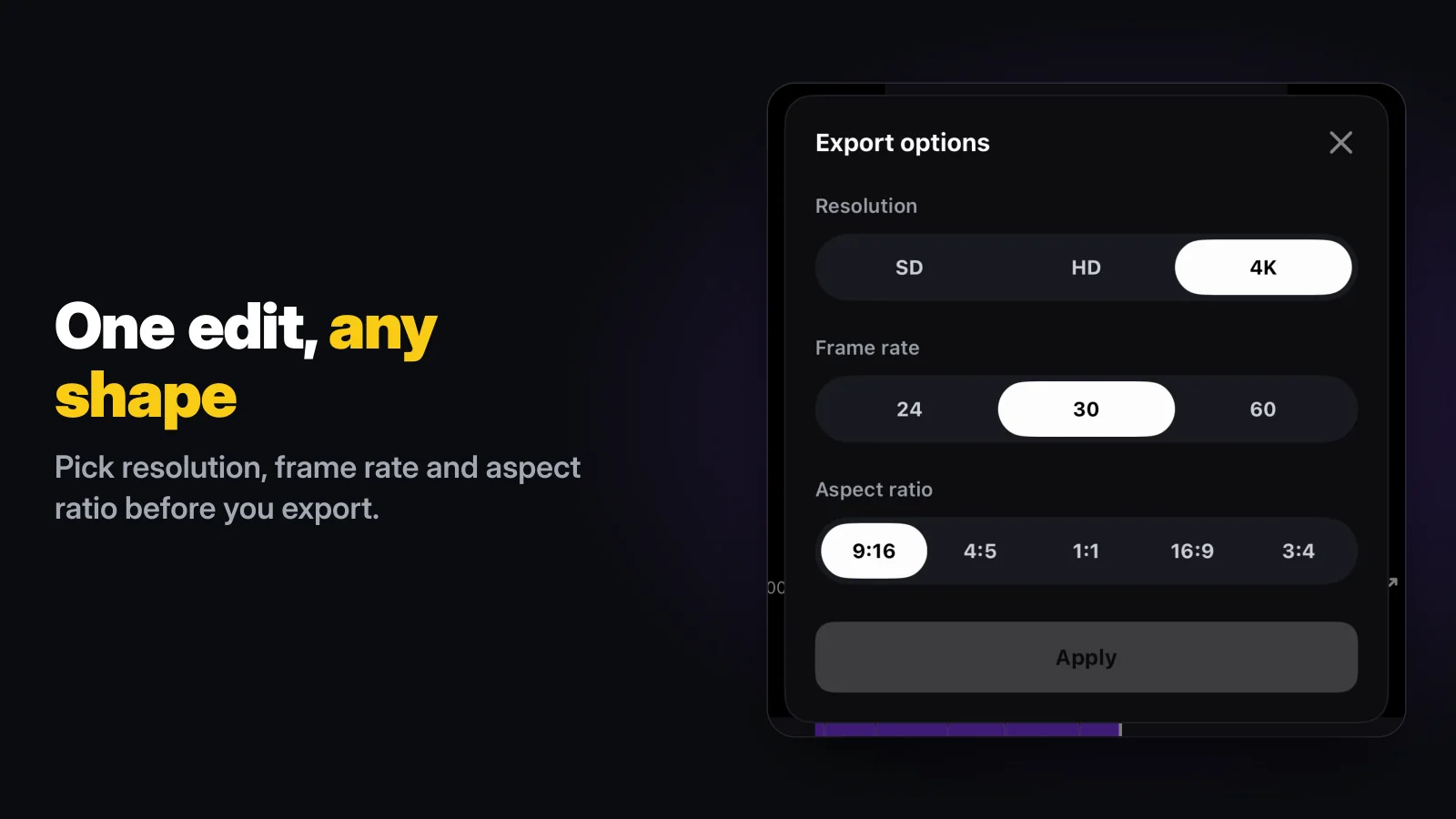
Wavcut is iPhone-only for now and has no speed control. A zoom in Wavcut holds for the whole clip it is on, so a zoom that moves during a shot is not something you can draw by hand. On Free, SD (720p) exports are clean and HD and 4K carry a watermark. If you want a vertical version of a wide video, pick 9:16 in Export options and reframe with the same pinch and drag; our YouTube Shorts guide covers what the shape changes. Weighing editors? Read Wavcut vs CapCut.