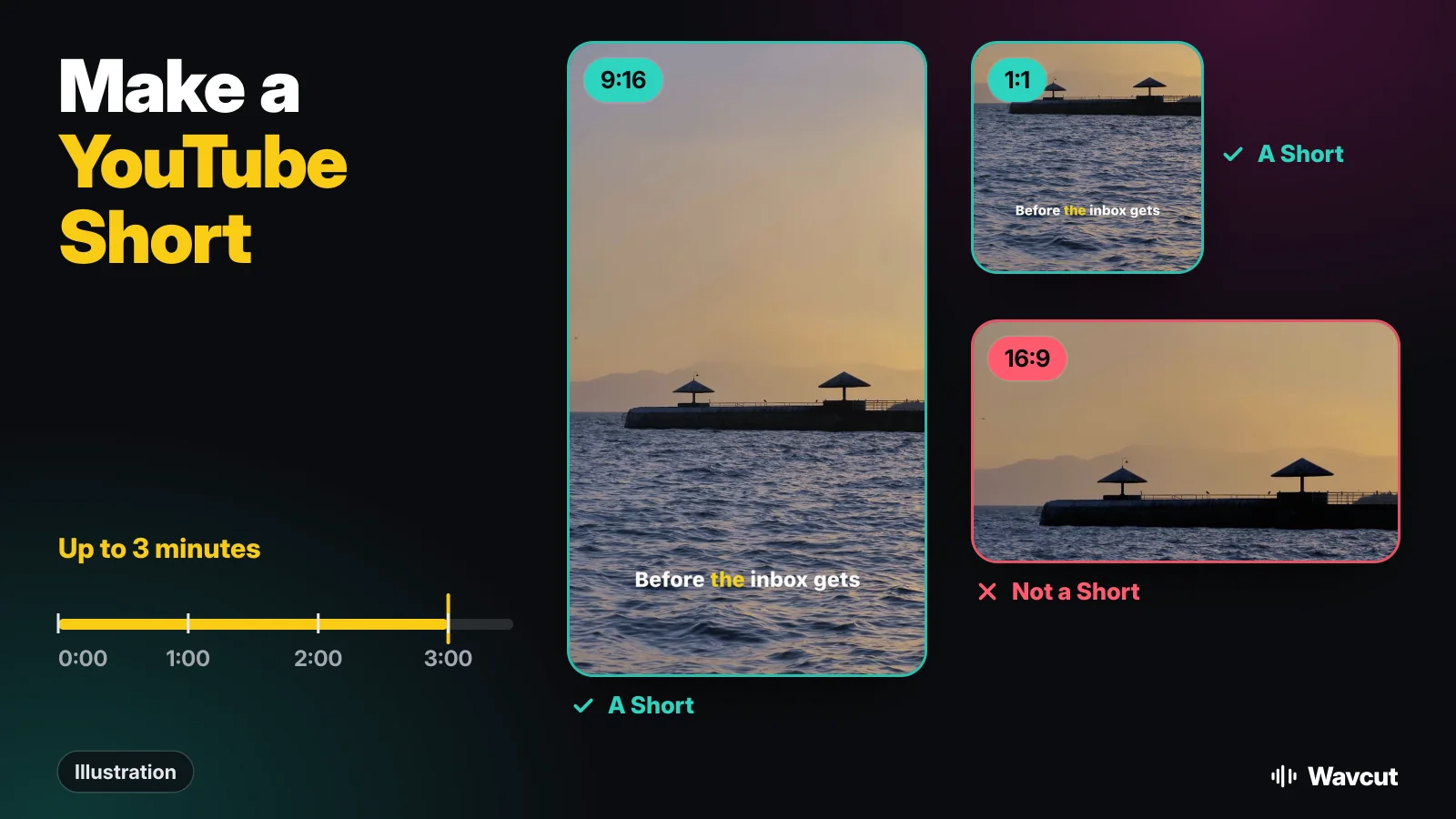
To make a YouTube Short, you need a vertical or square video that runs up to 3 minutes, and then you upload it. That is the whole rule. Below: what YouTube counts as a Short, how the Shorts camera in the YouTube app works, and how to film and edit one on your iPhone with Wavcut so the pauses are cut and the captions are already on before you upload.
What counts as a YouTube Short?
YouTube's help page on three-minute Shorts spells it out: videos uploaded on or after October 15, 2024 "with a square or vertical aspect ratio up to three minutes in length will be categorized as Shorts on YouTube." Shape and length decide, not a hashtag or a setting. The same page adds the way out: "If you don't want your content to be classified as Shorts, use a wider aspect ratio such as 16:9 for long-form videos."
So a 9:16 clip from your iPhone that is 2 minutes long becomes a Short the moment it is uploaded. A 16:9 clip of the same length becomes a normal video.
How do you record a Short in the YouTube app?
The fastest route is the Shorts camera inside YouTube. These are the steps as YouTube Help writes them:
- Sign in to the YouTube app.
- Tap Create, then Short.
- Hold Capture to record, or tap it to start and stop.
- Tap Done to preview, then add sound or text if you want.
- Tap Next, give it a title and settings, then tap Upload Short, or Save draft.
This works for a quick, one-take clip. It gives you no silence cutting and no caption styles of your own, so for anything you want to look edited, film with the Camera app and edit first.
How do you make a Short from a video on your iPhone?
A worked example with our own footage: for the App Store preview we recorded a 12.1-second talking take about a morning routine, holding the phone upright. Here is the path from that take to a Short.
- Film upright. Hold the iPhone vertically so the clip is 9:16 from the start. Frame yourself from the chest up and leave room at the bottom for captions.
- Open it in Wavcut. Tap New Video and pick the clip. The active preset runs the edit; Talking Head cuts silent pauses and adds captions.
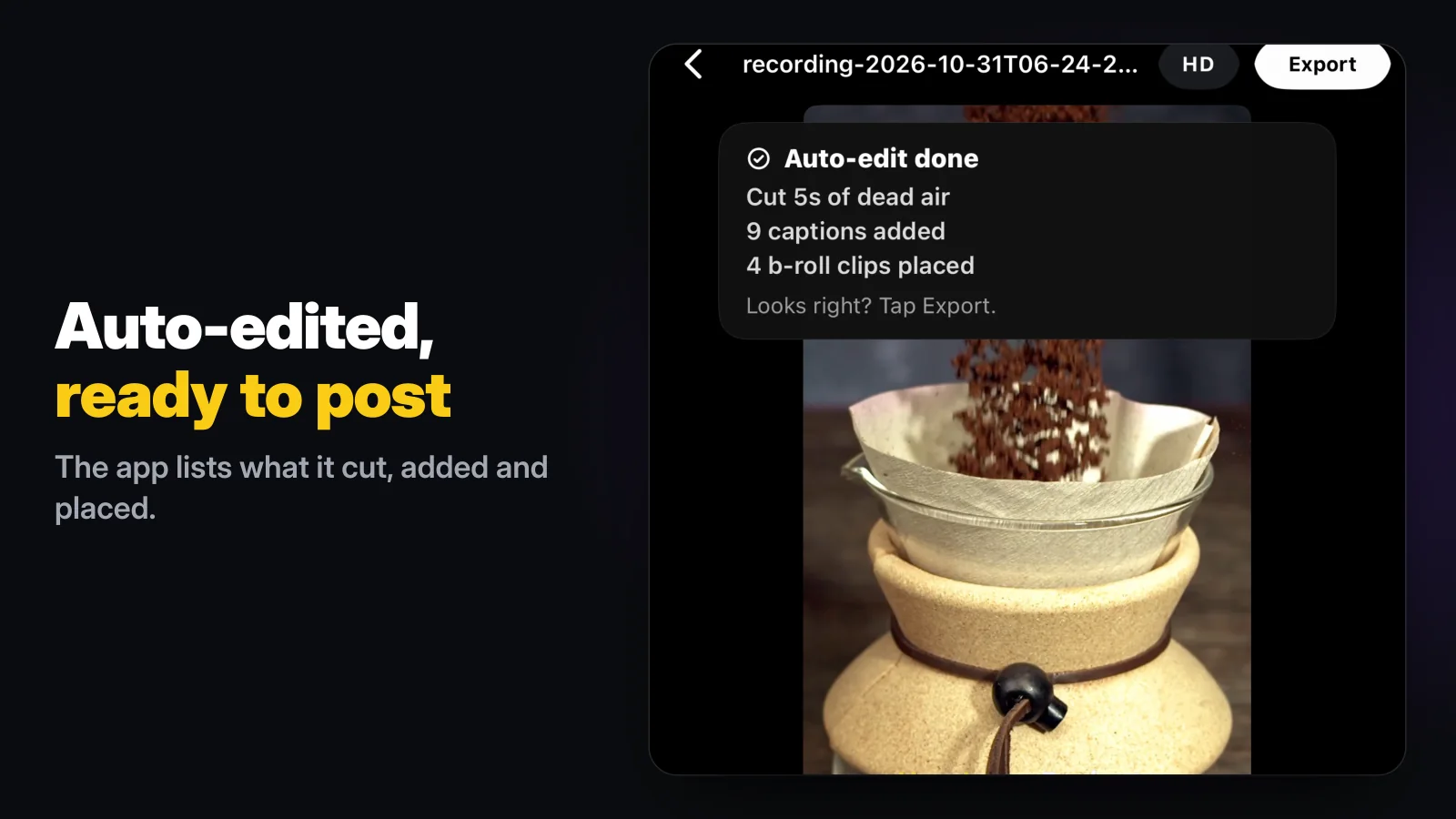
- Check the result. For the sample take the app reported 5 seconds of dead air cut, 9 captions added and 4 b-roll clips placed. Every cut stays on the timeline, so you can toggle any of them back on.
- Export in 9:16. In Export options choose the resolution and keep the aspect ratio at 9:16. The file is saved to Photos.
- Upload. In the YouTube app tap Create and upload the video from Photos. Because it is vertical and under 3 minutes, YouTube files it as a Short. From a computer, YouTube Studio's CREATE and Upload videos accept a file that is "Up to 3 minutes" and "With a square or vertical aspect ratio."
Wavcut does not post to YouTube itself; it renders on the phone and hands the file to Photos. That keeps your upload under your own account, with YouTube's title, description and audience settings.
How long should a YouTube Short be?
Up to 3 minutes is the limit, and the help page says nothing about an ideal length, so we will not invent one. Two things it does say matter if you go past a minute: "You can use most songs for up to 90 seconds in a 3 minute Short. However, some tracks may be limited to 60 or 30 seconds," and "Any Short that is over one minute in duration with an active copyright claim of any type" is blocked. Your own voice and your own b-roll carry none of that risk.
What you can control is the dead time. Our 12.1-second sample take lost 5 seconds of pauses to the auto-cut and kept every word. On a two-minute take the same cut is what makes the difference between a Short people watch to the end and one they swipe past.
Which export settings make a Short?
Checked on November 14, 2026, against YouTube Help and the app itself:
| Setting | YouTube's rule for a Short | In Wavcut |
|---|---|---|
| Aspect ratio | Square or vertical | 9:16 (Short), 1:1 (Short), 4:5 and 3:4 (vertical, Short), 16:9 (long-form) |
| Length | Up to 3 minutes | Shown on the timeline after the silence cut |
| Resolution | Not part of the rule | SD (720p), HD, 4K |
| Frame rate | Not part of the rule | 24, 30 or 60 |
| Captions | Not part of the rule | Burned in from the transcript, in your preset's style |
| Price | - | Free plan; HD and 4K exports carry a watermark |
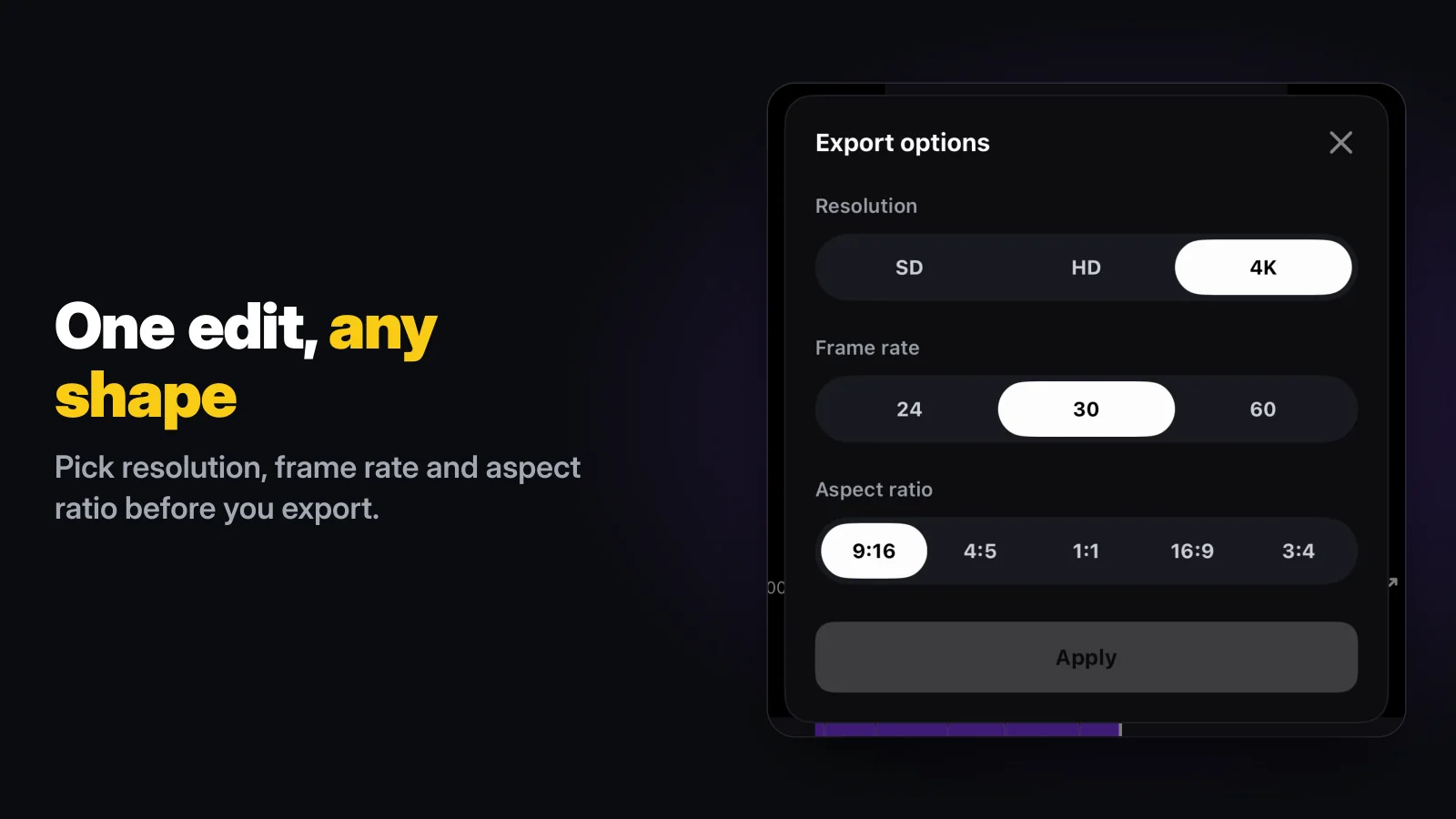
One edit can go out twice: export at 9:16 for Shorts, then open Export options again and choose 16:9 for a long-form upload of the same story. Set the resolution with your plan in mind: on Free, SD (720p) exports are clean and higher resolutions carry a watermark.
Can you make a Short without showing your face?
Yes. Record a voice-over instead of a take, and let the edit fill the picture. In Wavcut that is the Audio Only mode: the narration is transcribed, pauses are cut, and b-roll from your collections covers the whole visual track, timed to what you say. Our guide to faceless YouTube channel ideas lists topics that work this way, and how to voice over a video covers the recording itself.
What are the limits?
Wavcut is iPhone-only for now and has no speed control. On Free, captions run on the phone for 3 videos a month; Pro and Max send the clip's audio for AI captions in 60+ languages. SD exports are watermark-free on Free; HD and 4K carry a watermark. The silence cut itself runs on the phone on every plan: remove silence from a video explains how it decides what to cut, and auto captions covers the caption side. For the general editing workflow, see how to edit a video on iPhone; if you are weighing editors, read Wavcut vs CapCut.