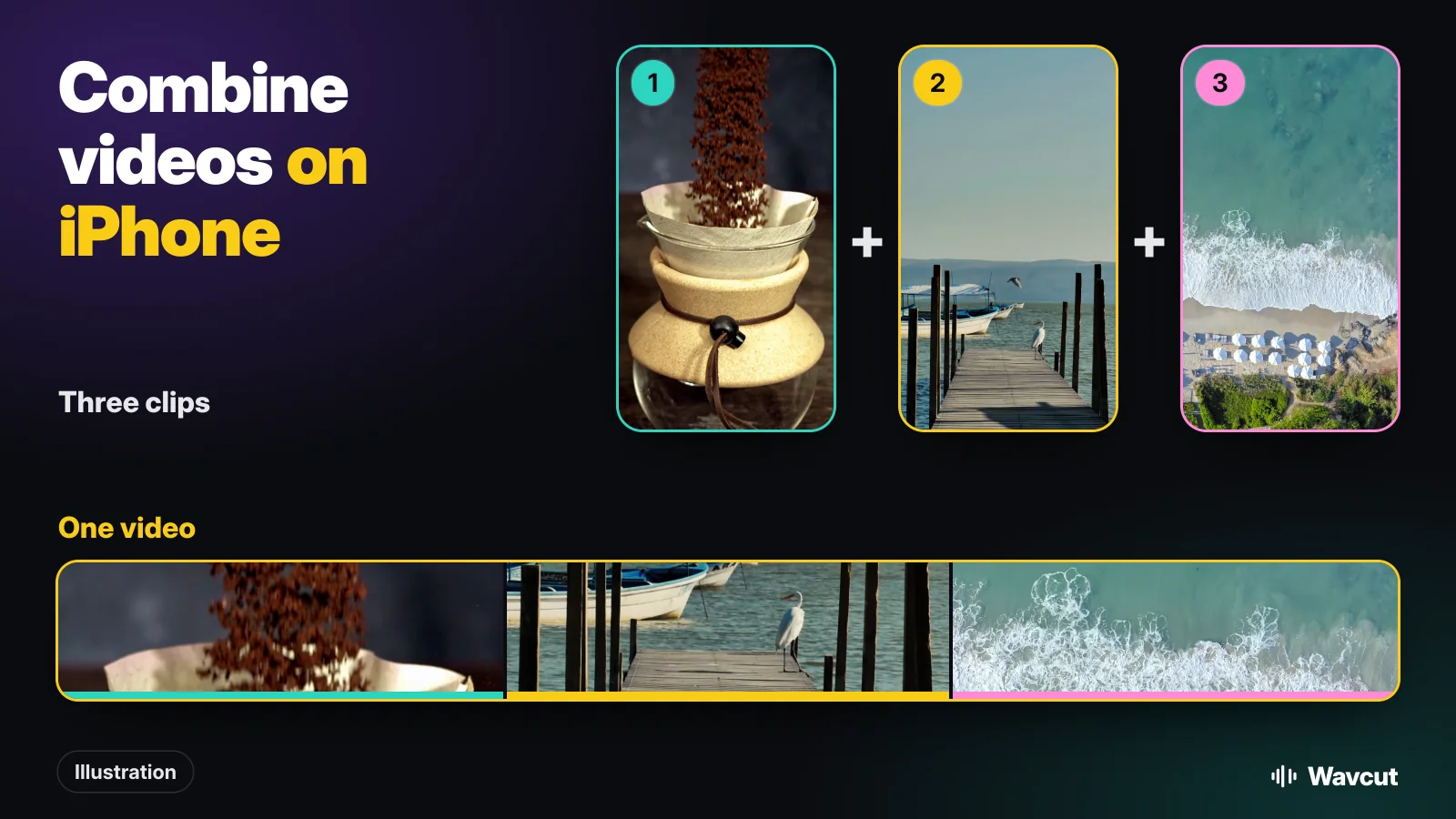
To combine videos on iPhone, open Apple's free iMovie app, start a new Movie project, tap each clip you want, then tap Create Movie: the clips play one after another as one video, which you save back to Photos. Apple points you to iMovie for this, not to the Photos app. If the clips are you talking to the camera, an editor like Wavcut joins them and also cuts the pauses and adds captions in the same pass. Here are both ways, step by step.
How do you combine videos in iMovie?
Apple's own answer to this question uses iMovie, which is free on the App Store. These are Apple's steps:
- Open iMovie and tap Start New Project. If you don't see it, tap Projects to go back to the Projects browser.
- Tap Movie.
- To browse your videos, tap Media, tap Video, then tap All.
- Tap a video, then tap the check mark in the pop-up menu to select it. Selected videos have an orange highlight. Select the others the same way.
- Tap Create Movie.
The order matters here. Apple says: "Videos are combined in the order in which you selected them, but you can rearrange them after you create the movie." So tap the clips in the order you want them to play, and you will rarely need to fix anything.
How do you change the order of the clips?
In the iMovie timeline, under the preview, touch and hold the clip you want to move until it lifts off the timeline, drag it to its new place and let go. If you can't see every clip, pinch the timeline to zoom out.
While you are there, two more fixes are worth knowing. To shorten a clip, tap it (a yellow border appears) and drag its left or right edge. To change how one clip turns into the next, tap the icon between them and pick an option such as None or Wipe; the default is Dissolve. Forgot a clip? Tap the Add Media button, tap Video, then All, and select it.
How do you save the combined video to Photos?
- If you are still editing, tap Done.
- Tap the Share button.
- Tap Save Video. The joined video lands in your photo library as one file, ready to post or send.
From the same Share sheet you can also send it straight through AirDrop, Mail or Messages.
How do you combine videos in Wavcut?
Wavcut is built for videos where you talk: several takes of a tip, a review in three parts, a story you filmed in pieces. It joins the clips when you create the video, then edits the result:
- Tap New Video and choose Video Only.
- Tap Select Files. Your Photos library opens with multiple selection on; tick every clip you want in the video.
- Confirm your picks. Wavcut places the clips one after another on the main track, then runs your preset over the whole thing: it cuts the dead air, adds captions and, if the preset has a b-roll collection, places b-roll.
- Play it through to check the order and the cuts, then tap Export.
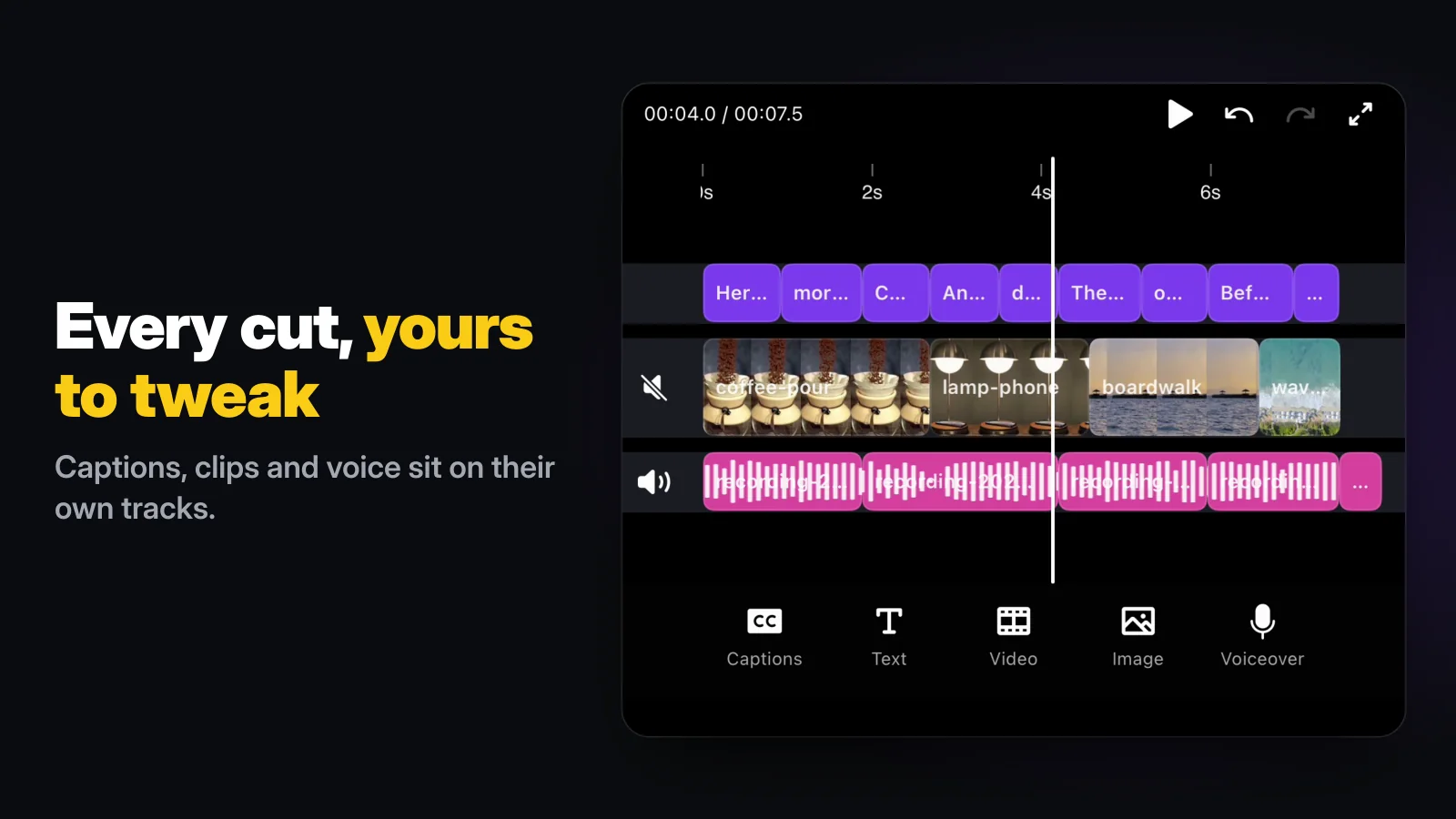
The difference from iMovie is what happens after the join. In iMovie the pauses at the start and end of every take stay in until you trim each one by hand. In Wavcut the silence remover treats the joined clips as one take, so the gaps between them close up too, and the captions run across all of them.
Which way should you use?
Checked on November 17, 2026, against Apple's guides and the app itself:
| iMovie | Wavcut | |
|---|---|---|
| Where you join | A new Movie project | New Video, Video Only |
| Clip order | The order you selected them | One after another, no gaps |
| Reorder later | Touch and hold, drag | Easier to pick again |
| Between clips | Dissolve by default; None, Wipe and others | Straight cut; dead air removed |
| Captions | Titles you type | Made from what you say |
| Cost | Free | Free plan; HD and 4K exports carry a watermark |
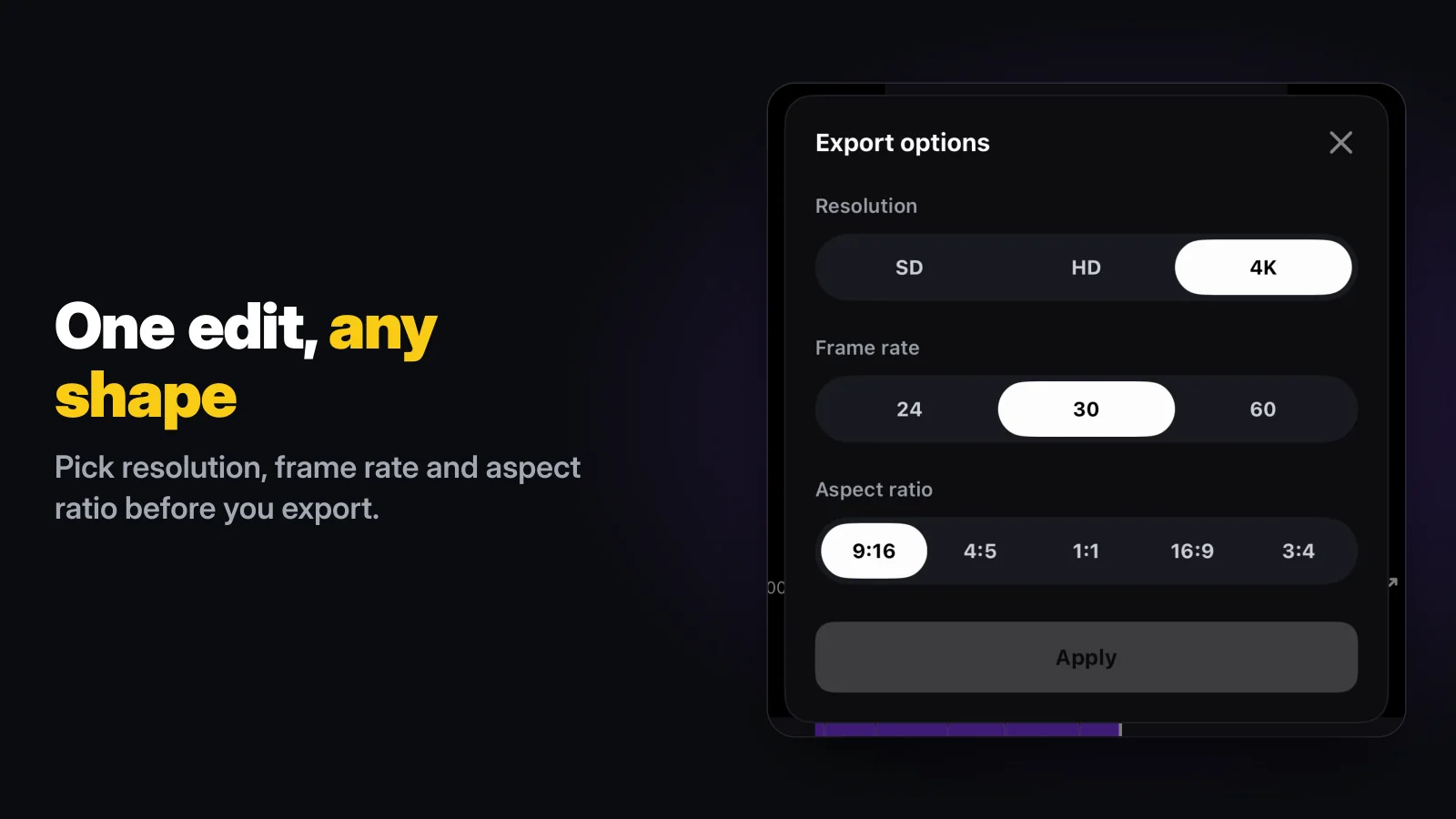
For holiday clips, a family video or anything where you want to arrange the shots by hand and add transitions, use iMovie. For a talking video you filmed in several takes, Wavcut gets you to a captioned, tight cut with fewer steps. Either way, pick the shape before you export: a vertical 9:16 export of the joined clips works as a Reel, a TikTok or a YouTube Short.
What are the limits?
Wavcut is iPhone-only for now and has no speed control. It has no transitions between clips and no drag-to-swap for main clips, so if you want to rearrange a dozen shots, iMovie is the better tool. On Free, SD (720p) exports are clean and HD and 4K carry a watermark, and on-device captions cover 3 videos a month. For the rest of the edit, see how to edit a video on iPhone; if the joined clips need new sound, our voice-over guide covers that. Weighing editors? Read Wavcut vs CapCut.