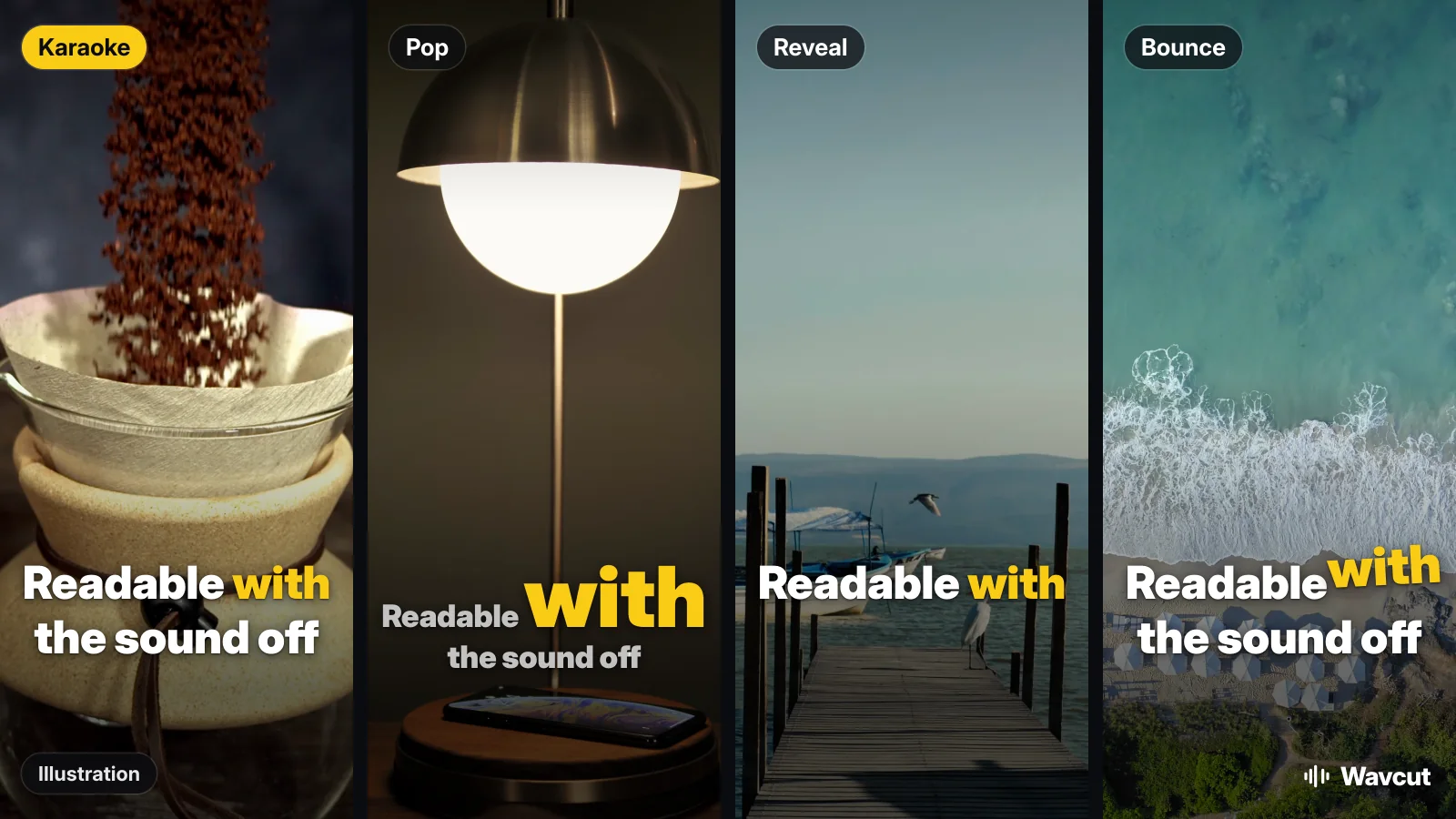
To add captions to a video on iPhone, you need an app, because nothing built into iOS saves captions into a video file any more. Live Captions shows a transcript on your screen while audio plays, and Apple stopped offering Clips, its simple video app, to new users on October 10, 2025. This guide covers what the built-in tools can still do, then the full caption workflow in Wavcut, including what is free and where the limits are.
Does iPhone have a built-in way to add captions to a video?
Not one that ends up in the video. Here is what each Apple option does, checked against Apple's own pages on November 4, 2026.
| Option | Captions saved into the video? | What it does |
|---|---|---|
| Live Captions (Settings, Accessibility) | No | Real-time transcript of audio in any app, shown in a window on screen. iPhone 11 or later, not in every language or region. |
| Clips | Not for new users | No longer available for new users since October 10, 2025 and no longer updated. Apple says it can still be used on iOS 26 or earlier. |
| Photos | No | Trims, crops, adjusts and adds filters. No caption tool. |
| iMovie | No automatic captions | Automatic captions are not listed on its App Store page. |
| Wavcut | Yes, rendered on export | Captions from your speech, styled and timed. On-device on Free (3 videos a month); AI captions in 60+ languages on Pro and Max. |
Live Captions is worth knowing about for watching, not for posting. Turn it on in Settings, Accessibility, Live Captions, and it transcribes the iPhone's audio or a conversation around you. You can copy the transcript, but the captions never become part of a video you share.
How do I add captions to a video on iPhone, step by step?
- Add your clip. Open Wavcut and add the video from your camera roll. Your video stays on the iPhone.
- Let it transcribe. Captions are created from your speech and timed to it. On Free this runs on the iPhone with Apple Speech. On Pro and Max, AI captions cover 60+ languages; only the audio is sent for transcription.
- Style the captions. Choose the font, size, color, animation and word highlight. If you have a preset, your saved look is applied for you.
- Watch it back once. Names, brand terms and slang are what transcription gets wrong most often, so check those.
- Export. The captions are rendered into the video on the iPhone and the file is saved to Photos, ready for Reels, Shorts or TikTok.
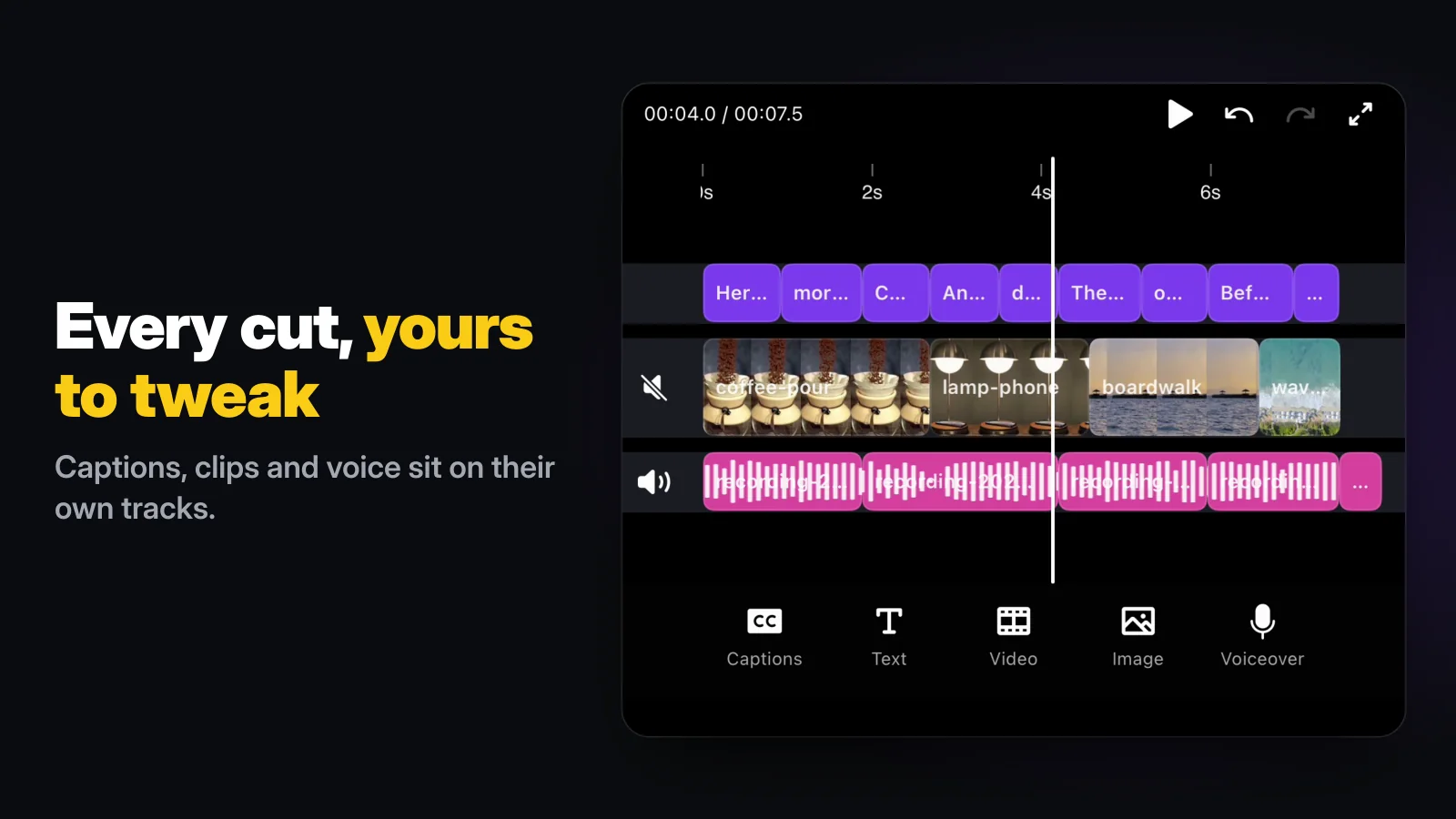
More detail on the caption engine and styles is on the auto captions page. If you need a subtitle file for YouTube rather than captions in the picture, see how to add subtitles to a video, which compares the two and shows a real SRT file.
Can I add captions to a video on iPhone for free?
Yes, on 3 videos a month. Wavcut's Free plan captions on the iPhone with Apple Speech, so nothing leaves the phone, and it is best for English. Re-running captions or re-exporting the same video does not use another of the 3. Exports at 720p are clean on Free; higher resolutions carry a watermark until you upgrade.
Pro and Max switch to AI captions in 60+ languages with higher accuracy. They are metered: 50 caption minutes a month on Pro and 200 on Max. If you caption a two-minute video every day, that is about 60 minutes a month, which fits Max but not Pro.
Why are my auto captions inaccurate, and how do I fix them?
Accuracy depends on the audio. Background noise, two people talking at once, fast speech and unusual names are the usual causes. Record in a quiet room with the microphone close, and speak at your normal pace. If you post in a language other than English, the AI captions on Pro and Max will usually do better than on-device transcription.
How do I make captions match my brand?
Pick a font that reads on a small screen, a size large enough to read without pausing, a color with strong contrast against your footage, and a position clear of the app buttons at the bottom of Reels and TikTok. Then keep it the same on every video, so viewers recognize your posts in the feed.
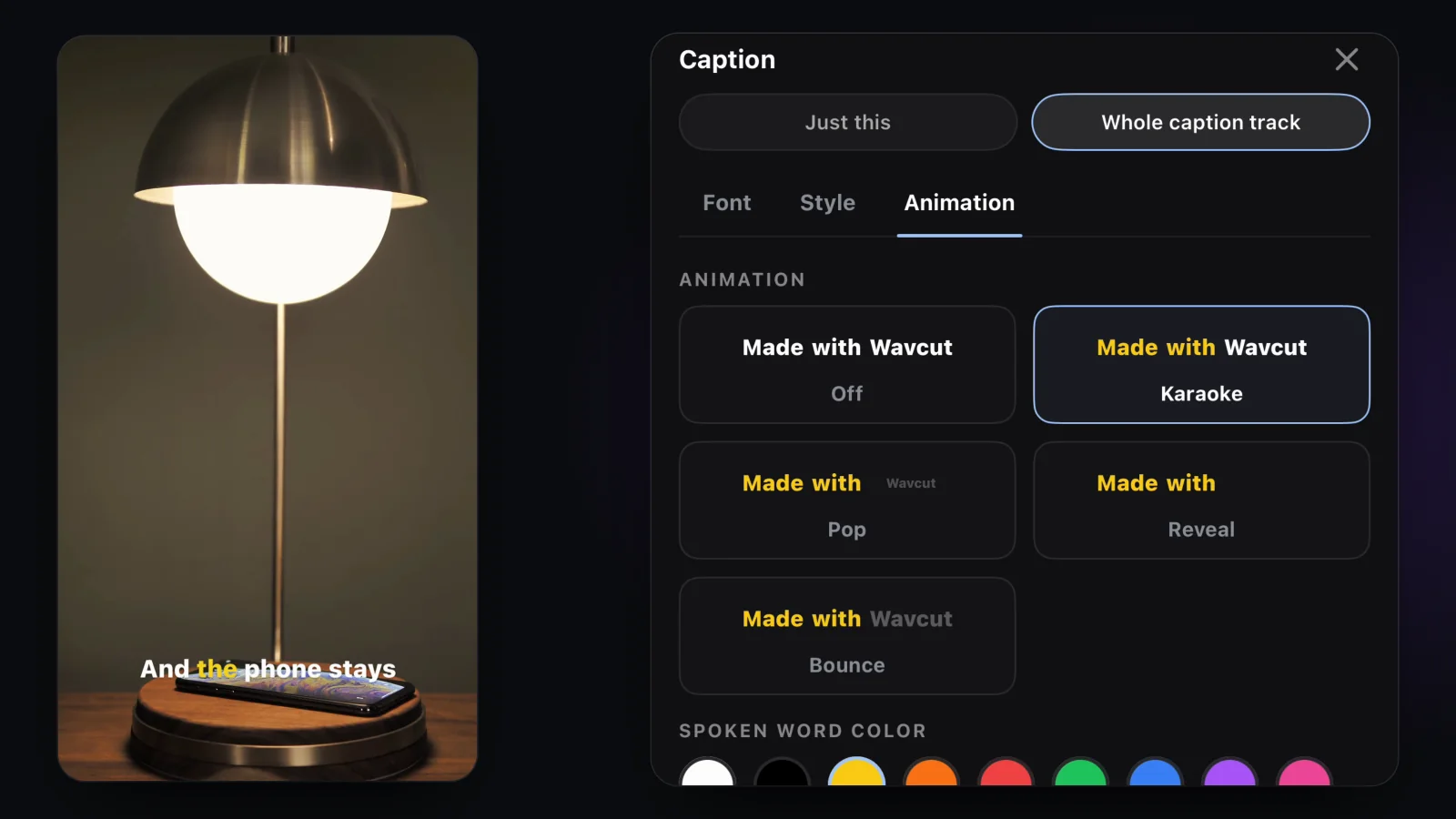
The easy way to keep it the same is a preset. In Wavcut a preset stores your caption style, position and language alongside your aspect ratio, b-roll collections and auto-edits, and every new project starts from it.
Why add captions to short-form videos at all?
Captions let people follow your video with the sound off, in a quiet place or a noisy one, and they make it accessible to viewers who are deaf or hard of hearing. On-screen words also give the eye something to follow in the first seconds, before a viewer decides to keep watching.
What should I do after the captions are on?
Captions are one part of a short-form edit. The other two slow jobs are pacing and visuals: removing silences tightens a talking-head take, and automatic b-roll keeps the picture moving. In Wavcut all three run when you add a clip, and every cut, caption and b-roll placement stays editable on the timeline.
Comparing apps? See the Captions app pricing breakdown or the CapCut alternative comparison. For trimming and cropping in Photos, and cutting a middle section in iMovie, read how to edit a video on iPhone. To add your own typed text, such as a hook or a label, instead of captions from speech, see how to add text to a video on iPhone.