To add text to a video on iPhone, you need a video editor, because the Photos app has no text tool for video. Apple's free iMovie does it with titles, and Wavcut, our iPhone editor, does it with a Text button. Below are the steps for both, with the button names each app uses.
Can you add text to a video in the Photos app?
No. Apple's own guide to editing videos in Photos covers trimming, filters and rotation, and lists no way to put words on a video. So the answer is an editor, and the free one from Apple is iMovie.
How do you add text to a video in iMovie on iPhone?
iMovie calls text a title. These are Apple's steps for iMovie 3.0.6, button names as Apple writes them:
- Open a movie project in iMovie.
- Tap a video clip or photo in the timeline to reveal the inspector at the bottom of the screen.
- Tap the Titles button, then tap a title style.
- Tap the sample title in the viewer, tap Edit, type your text and tap Done on the keyboard.
- Drag the title to move it. Pinch it to make it bigger or smaller.
To change the look, tap the clip at the playhead and the Titles button again. The Font and Color buttons change the type, Style switches between Default and Lower Third, and the More button holds Text Shadow, Uppercase and Full Clip Duration. That last switch matters: a title belongs to one clip, and Full Clip Duration is how you keep it on screen for the whole clip.
How do you add text to a video in Wavcut?
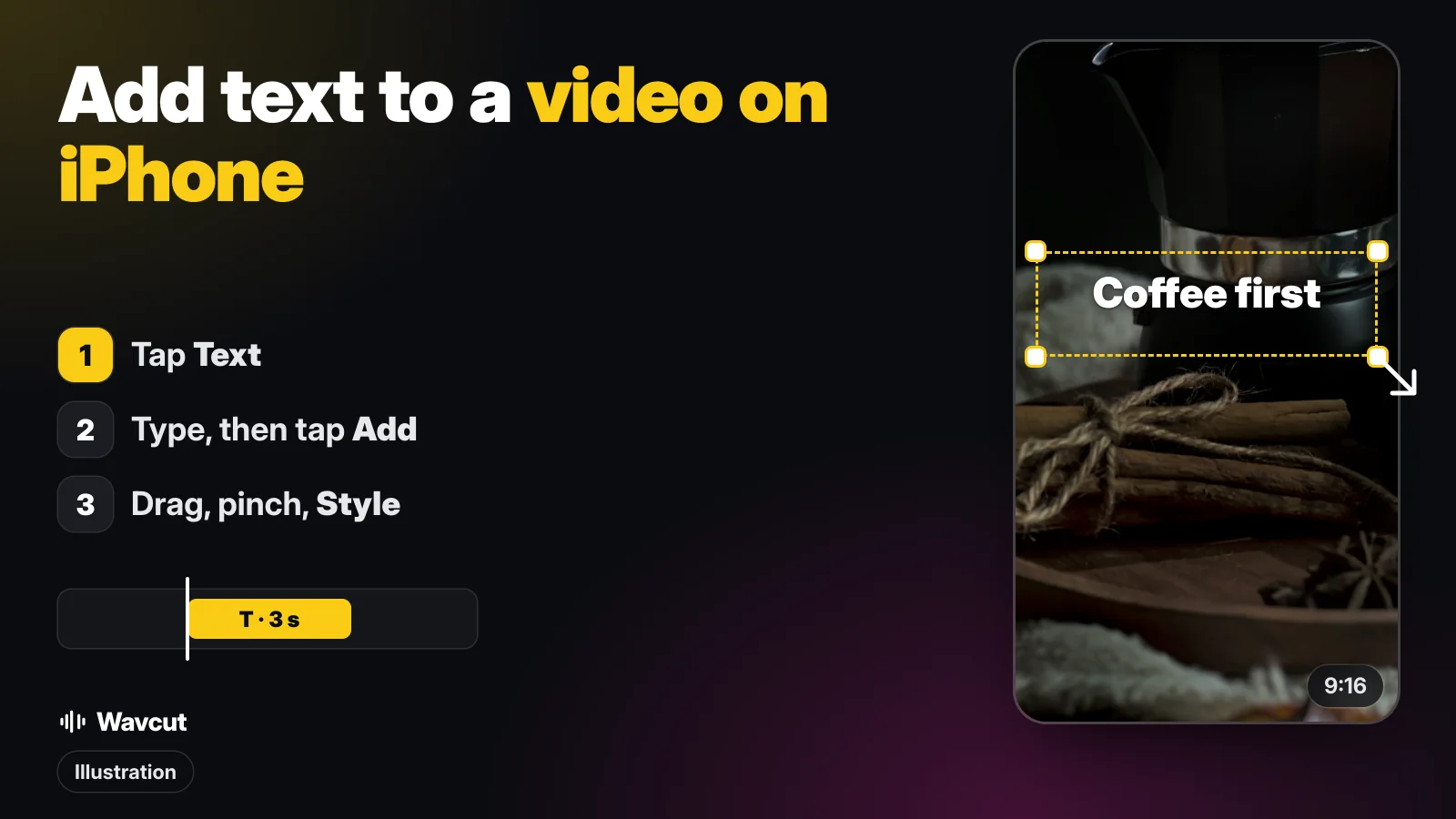
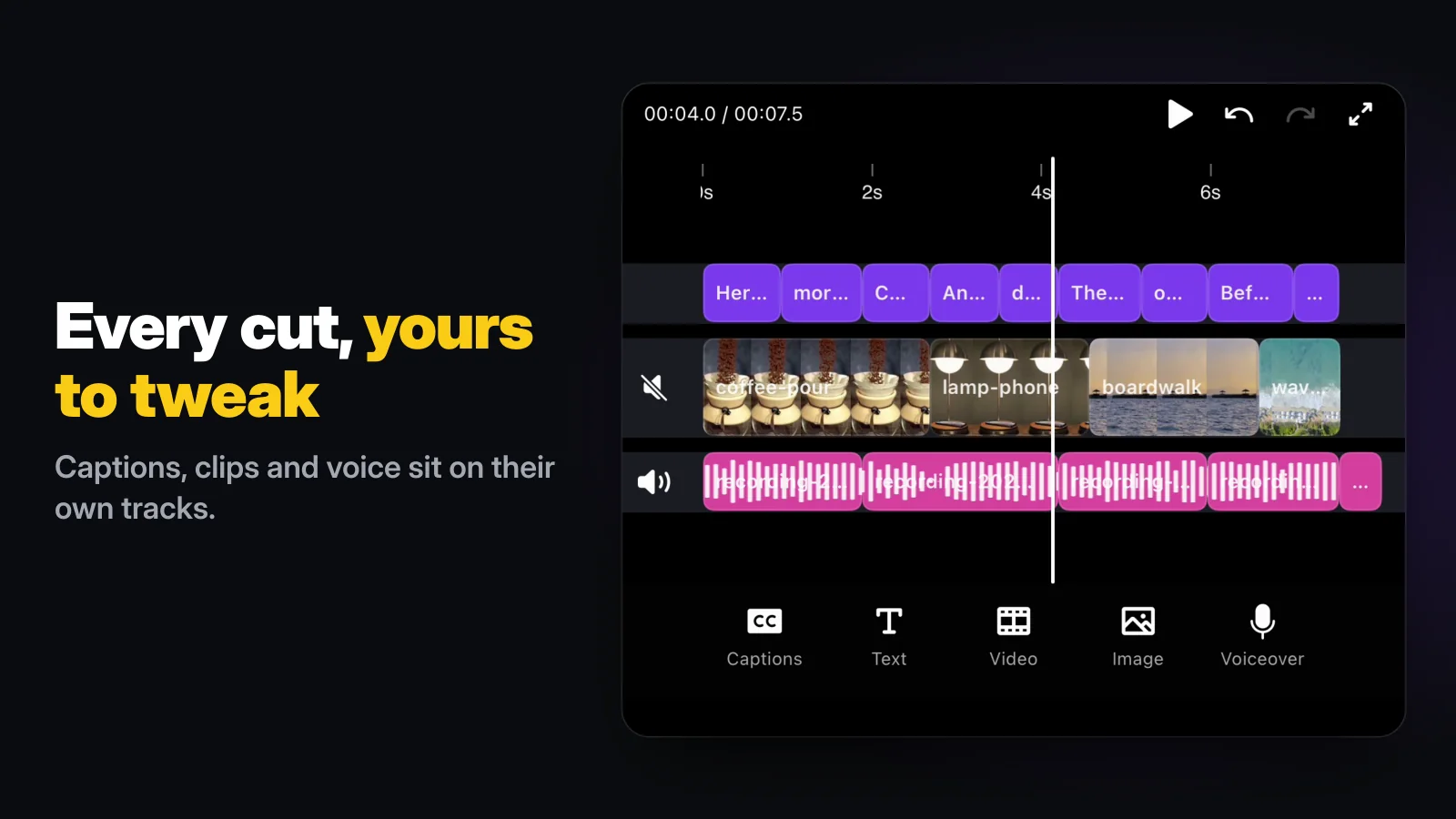
In Wavcut, text is its own item on the timeline instead of a setting on a clip. A worked example: you want the words "Coffee first" over a shot of a coffee pot, as in the picture at the top of this page.
- Open the video in the editor and move the playhead to where the text should start.
- Tap Text in the toolbar. A sheet called Add text overlay opens.
- Type "Coffee first" and tap Add. The text lands at the playhead on its own track and stays for 3 seconds.
- Drag it in the preview to move it and pinch to resize it. On the timeline, drag its ends to show it for longer or shorter.
- With the text selected, tap Style: the Font tab picks the typeface, the Style tab sets the size (16 to 200) and the color. Edit changes the words.
Repeat for every line you need. Each one gets its own place on the timeline, so a hook at the start and a call to action at the end are two separate pieces of text you can move around freely.
iMovie or Wavcut: which one fits?
Checked on November 13, 2026, against the sources listed below and the app itself:
| Photos | iMovie 3.0.6 | Wavcut | |
|---|---|---|---|
| Text on video | No | Titles (preset styles) | Text overlays |
| Where the text lives | - | On one clip | On its own track, from the playhead |
| How long it shows | - | Part of the clip, or the whole clip with Full Clip Duration | 3 seconds, then drag its ends |
| Move and resize | - | Drag, pinch, Default or Lower Third | Drag, pinch |
| Look | - | Font, Color, Text Shadow, Uppercase | Font, Size, Color |
| Price | Built in | Free; needs iOS 27 or later | Free plan; HD and 4K exports carry a watermark |
Pick iMovie for a one-off title on a home video: it is free, made by Apple and the animated title styles look finished with no effort. Pick Wavcut if you make vertical videos for Reels, TikTok or Shorts often, want several lines of text at exact moments, and also want the pauses cut and captions added automatically in the same edit.
Where should text go on a vertical video?
Toward the upper middle of the frame. The app you post to draws its own buttons and post text on top of your video, so open its preview before posting and move anything that ends up covered. Keep each line short enough to read twice before it disappears, use white or yellow on darker footage, and check the result on the phone before you post. If your text should follow what you say, you want captions instead; our guide to adding captions on iPhone covers that, and adding subtitles to a video explains burned-in text versus a subtitle file.
Does the text stay on the video when you export?
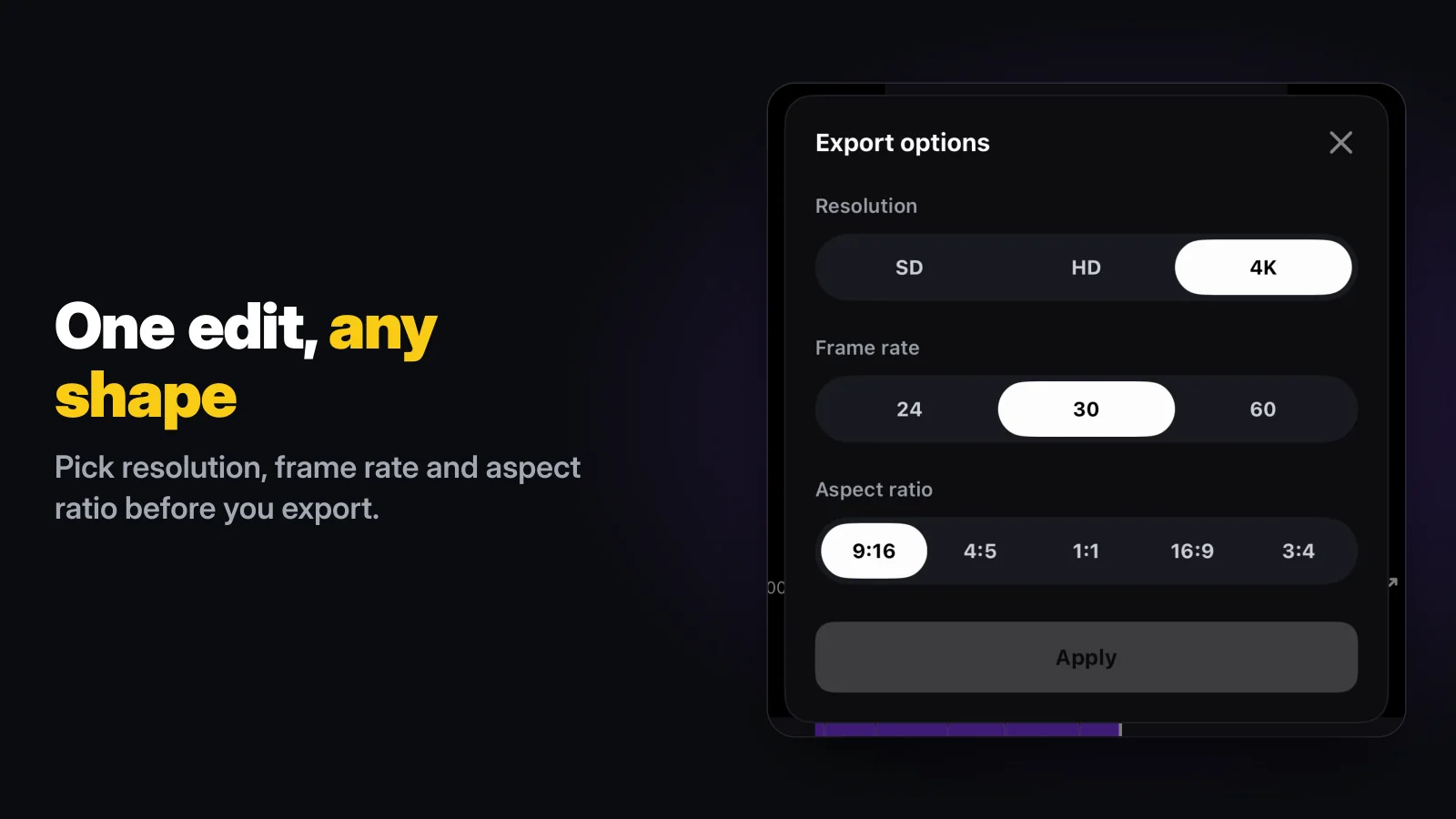
Yes, in both apps the text is burned into the exported file, so it shows everywhere you post it. In Wavcut you choose resolution, frame rate and aspect ratio in Export options before saving.
The limits, so nothing surprises you: Wavcut is iPhone-only for now and has no speed control. Text overlays use Font, Size and Color; the word animations in the Style sheet are for captions only. On Free, SD (720p) exports are clean and HD and 4K carry a watermark. For the rest of the editing workflow, see how to edit a video on iPhone, and if you are weighing editors, read Wavcut vs CapCut.