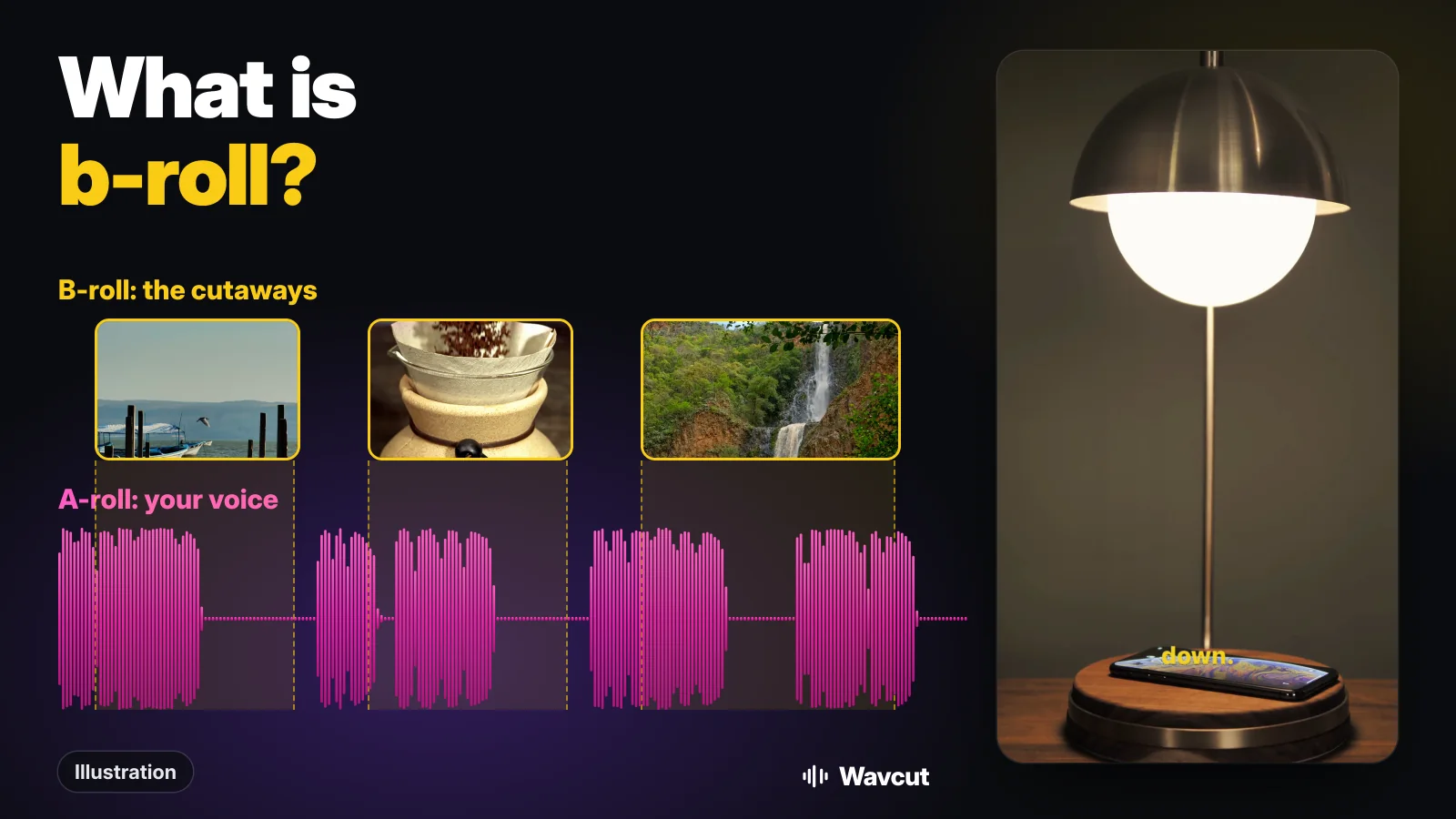
B-roll is the supporting footage you cut to while the main shot keeps telling the story. The main shot, usually a person talking to the camera or a voice-over, is the A-roll. The b-roll is everything you show on top of it: the coffee being poured while you talk about your morning, the screen recording while you explain an app, the street outside while you describe a trip. The voice carries on underneath; only the picture changes.
What is b-roll in video editing?
Wikipedia defines b-roll as "supplemental or alternative footage intercut with the main shot". In practice it has two jobs. It shows what you are talking about, so the viewer sees the thing instead of only hearing about it. And it covers the joins: when you cut a pause or a fumbled sentence out of a talking-head clip, the picture jumps, and a few seconds of b-roll over that cut hides the jump while your voice runs on.
That second job matters more on phones than people expect. Once you cut the silences out of a take, a one-minute talking-head video is full of jump cuts. B-roll is what makes that tight pacing look intentional.
Where does the name b-roll come from?
From film. When editors assembled 16mm film for printing, they split the shots across two reels: odd-numbered shots on the A-roll, even ones on the B-roll, each gap filled with black leader so the two rolls interlocked like a checkerboard. Later, linear video editing used a second tape deck, the "B" deck, for extra footage such as establishing shots and cutaways. The reels are gone, but the names stuck: A for the main story, B for what you cut away to.
What is the difference between A-roll and b-roll?
| Aspect | A-roll | B-roll |
|---|---|---|
| What it is | The main shot that tells the story | Supporting footage shown over or between it |
| Typical examples | Talking head, interview answer, voice-over | Hands at work, product close-ups, places, screen recordings |
| Whose sound you hear | Its own | Usually the A-roll's, kept running underneath |
| Without it | There is no story | The story works but looks flat, and every cut shows |
A faceless video turns this around: the voice-over is the A-roll and the picture is b-roll from start to finish. Our voice-over guide shows how to record that kind of narration on iPhone.
What counts as b-roll?
Anything that is not the main shot and supports what is being said:
- Cutaways to the thing you mention: the recipe, the gadget, the page you are pointing at.
- Establishing shots that set the place: the café front, the beach, the desk before you sit down.
- Process shots: hands typing, pouring, packing, sketching. They are easy to film and work in almost any niche.
- Screen recordings for anything about apps, settings or websites.
- Photos and stock clips, if the licence allows the use. Check it before you post.
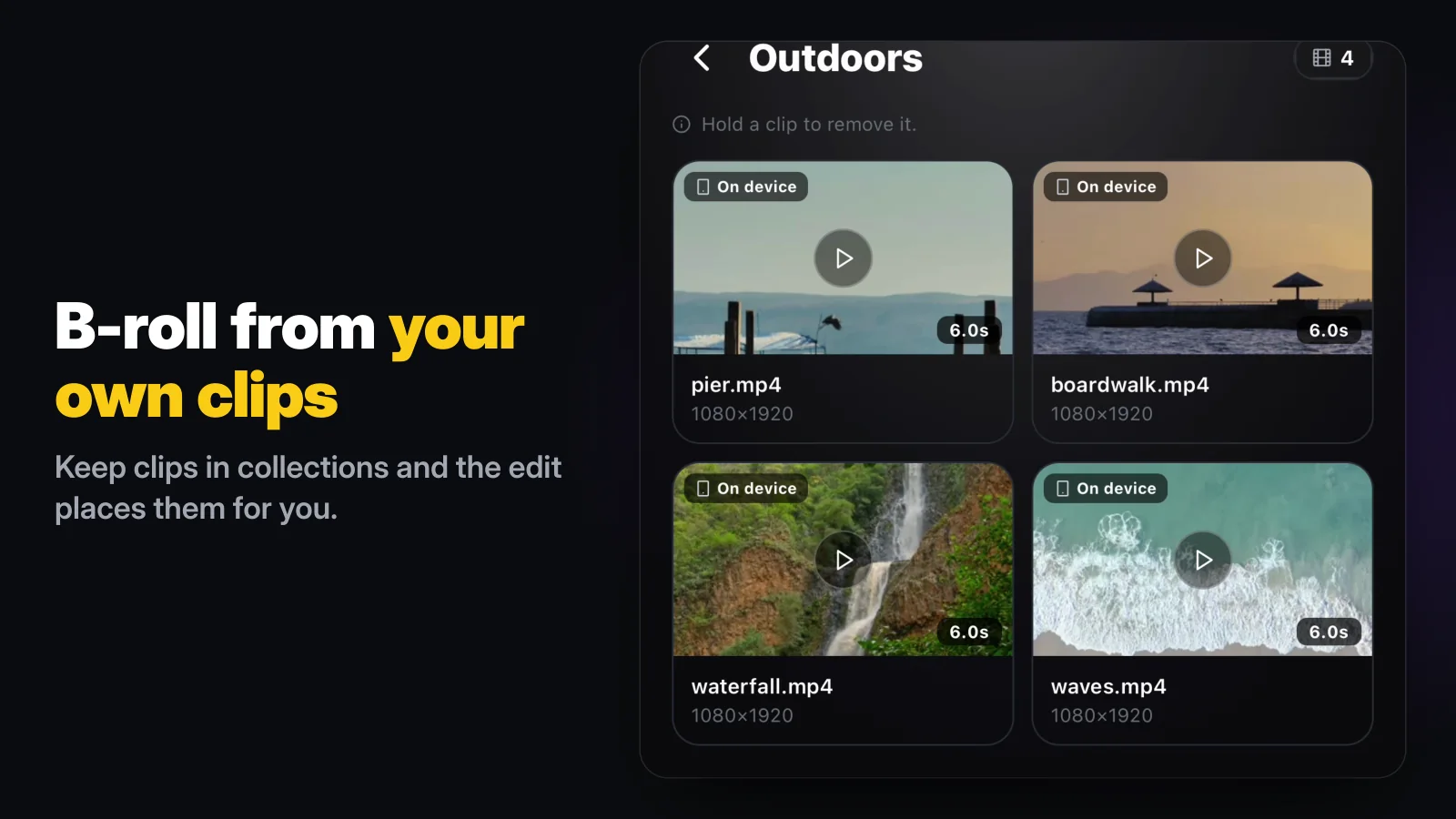
Your own clips usually beat stock, because they match your lighting and look like your life. Film a few seconds of steady footage of each thing whenever you have the phone out, and keep it somewhere you can find it again.
How do you add b-roll to a video on iPhone with iMovie?
Apple's free iMovie calls b-roll a cutaway. Apple lists these steps:
- Open a movie project in iMovie, with your main clip in the timeline.
- Scroll the timeline so the playhead (the white vertical line) sits where the b-roll should start.
- Tap the Add Media button, tap Video, pick a category and tap the clip.
- Tap the More button, then tap Cutaway.
During playback the movie cuts away from the main clip to the new one, and Apple notes that the audio of the main clip is still heard, which is exactly what b-roll needs. The same menu has Picture in Picture and Split Screen if you want the speaker to stay visible. Repeat the steps for each cutaway. Our guide to editing a video on iPhone covers the trimming you will want to do first.
How can b-roll be added automatically?
Placing cutaways by hand is the slow part: find the clip, drop it in, trim it, nudge it onto the right word, again for every cut. Wavcut does that first pass for you. You keep your clips in collections, and your preset says which collections to pull from and how often and how long the cutaways run. When you add a talking-head clip, the auto b-roll pass lays cutaways over it. With Audio Only, b-roll builds all of the visuals, timed to your narration.
Here is a real example. For our App Store preview we recorded a 12.1-second voice-over with no camera footage at all and let the auto-edit run. It reported this:
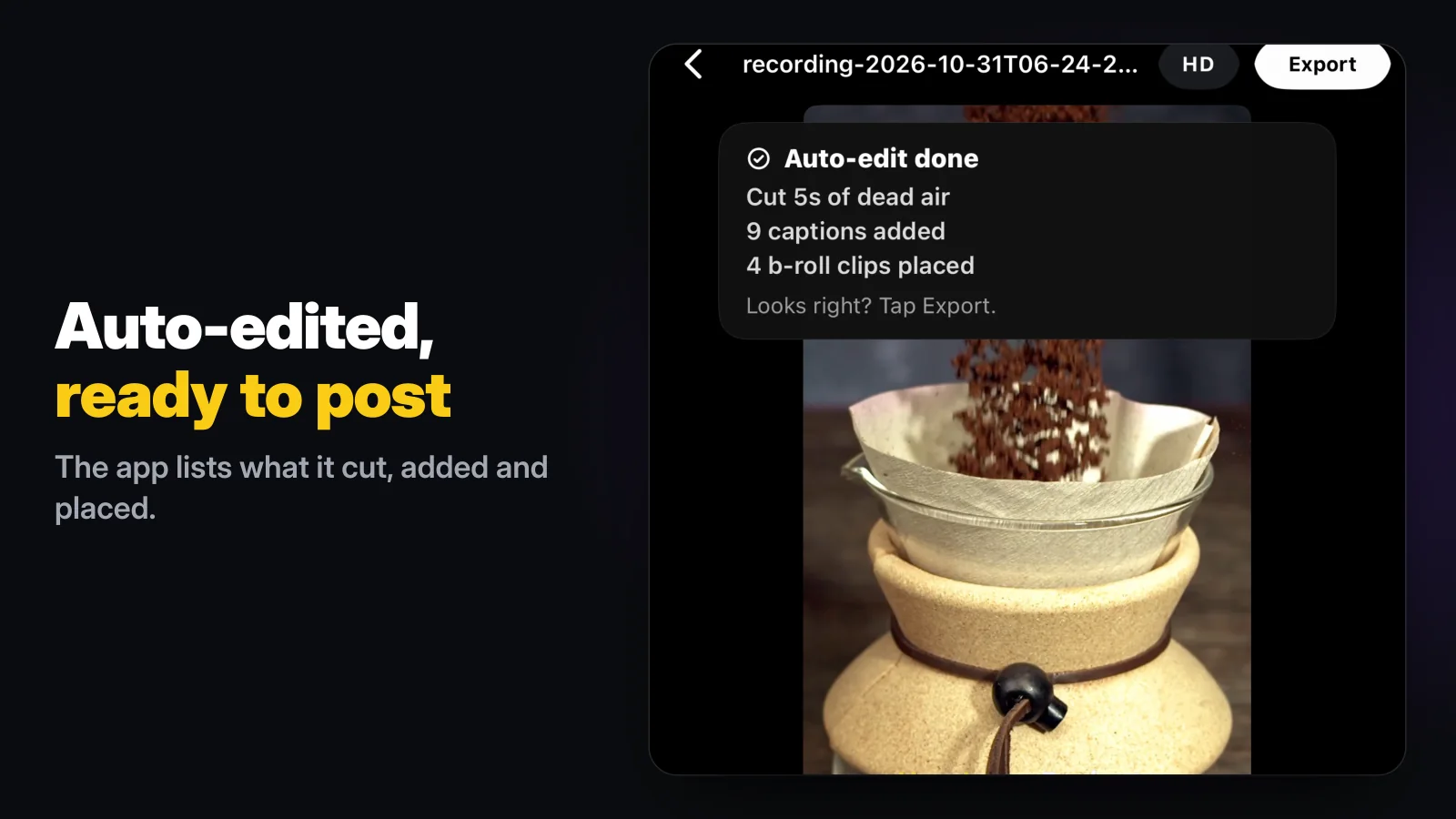
Four b-roll clips from our sample collections covered the whole picture, with 5 seconds of dead air cut and 9 captions added from the transcript. Every placement landed on a normal timeline, so swapping a cutaway that does not fit the line takes a tap.
iMovie cutaways vs Wavcut auto b-roll: which fits?
Checked against Apple's support page and the App Store on November 7, 2026. Wavcut is our app; its column comes from the product itself, limits included.
| Job | iMovie | Wavcut |
|---|---|---|
| Add one cutaway | Add Media, then More, then Cutaway, at the playhead | Placed by the auto-edit; drag or swap it on the timeline |
| Many cutaways in one video | Repeat the steps for each clip | One pass, following your preset |
| Where the b-roll lives | Your photo library | Collections inside the app; cloud sync on Pro (10 GB) and Max (50 GB) |
| Video made from a voice-over only | Place every clip by hand | Audio Only fills the picture with b-roll |
| Price | Free | Free to start; Free exports above 720p carry a watermark |
For a single video with three or four cutaways, iMovie is free and does the job. If you post talking-head or faceless videos every day, the hand placement adds up, and that is the part Wavcut automates. Our guide to faceless YouTube editors goes deeper on building a b-roll library for that.
The limits, so you can decide before you install: Wavcut is iPhone-only for now and has no speed control. On Free, 720p exports are clean; higher resolutions carry a watermark until you upgrade. If you are weighing it against CapCut, our Wavcut vs CapCut comparison goes feature by feature.