To compress a video on iPhone, you make the file smaller by lowering its resolution, its frame rate or its length. Apple has its own method for the first one, through iMovie, and publishes rough sizes for each setting. Below: Apple's steps, the camera settings that keep new videos small, how to send a video that is still too big, and a table we measured ourselves, with the same export settings Wavcut uses.
How do you compress a video on iPhone with iMovie?
Apple's guide (for iPhone 12 or later on iOS 26 or later, with the latest iMovie, free in the App Store) works in two parts. First, put the video in a project:
- Open iMovie.
- In the Projects browser, tap Start New Project, then tap Movie.
- Tap Media, then tap Video, and tap the video you want to compress. A check mark confirms it.
- Tap Create Movie, then tap Done.
Then export it at a lower resolution:
- Tap the Share button at the bottom of the screen.
- Tap Save or Share Video, then tap Options.
- Select a lower resolution, like 720, 540 or 360, and tap Done.
- Tap Save Video to put the smaller copy in your photo library, or Save to Files or AirDrop.
Apple's rule of thumb: "540p is suitable for social media. 360p is suitable for text messaging." It also warns that quality can drop, depending on how the video was recorded. To check the result, open the video in Photos and tap the Information button; the file size sits under the name of the device that recorded it.
How big is a one-minute iPhone video?
Apple lists approximate sizes for a one-minute iMovie export: 70 to 105 MB at 1080p (the default camera and iMovie export setting), 19 to 27 MB at 720, 12 to 16 MB at 540 and 6 to 9 MB at 360. Those are ranges because the file depends on the picture. A busy, moving shot needs more data than a still one.
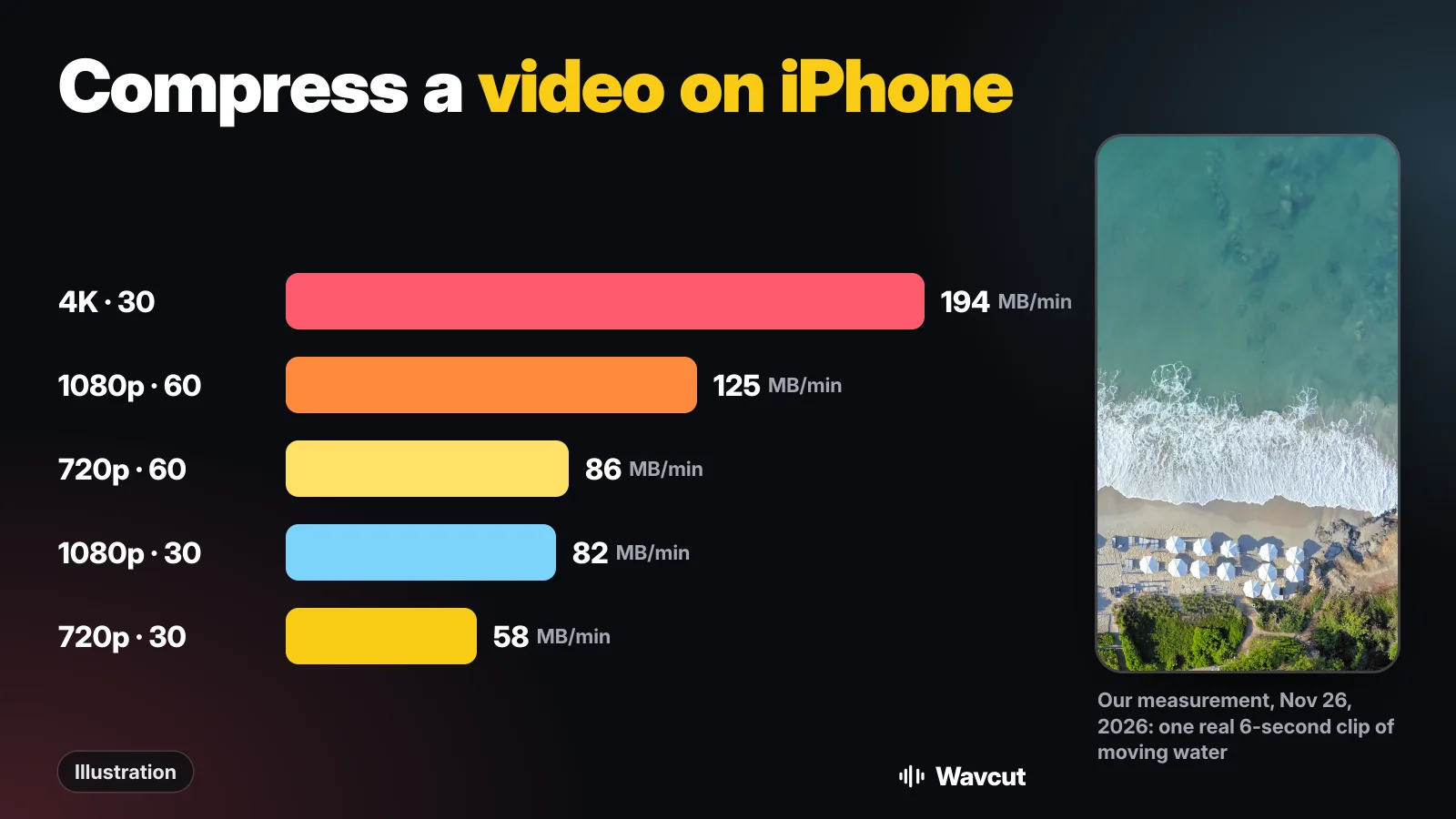
We wanted to see how big that difference is, and how much frame rate matters next to resolution. On November 26, 2026, we exported two real 6-second vertical clips from our own b-roll library, waves seen from above and a coffee tray that barely moves, with the export preset Wavcut's editor uses (AVFoundation's highest-quality preset, H.264 MP4, no audio), on a Mac. Sizes are per minute, the 6-second files times 10:
| Export (9:16) | Moving water | Almost still |
|---|---|---|
| 4K, 30 fps | 194 MB | 82 MB |
| 1080p, 60 fps | 125 MB | 61 MB |
| 1080p, 30 fps | 82 MB | 39 MB |
| 720p, 60 fps | 86 MB | 55 MB |
| 720p, 30 fps | 58 MB | 35 MB |
Three things stand out. Going from 4K to 1080p cut the file by 58% for the water and 52% for the still shot. Going from 60 to 30 fps cut 34 to 37% at both resolutions. And for the still shot, 720p at 60 fps came out bigger than 1080p at 30 fps, so the frame rate is worth checking before the resolution. Our numbers sit above Apple's 720 range because this preset aims at quality, not size; for the smallest file, Apple's 540 and 360 exports go further. Limits of the test: the clips were 1080p, so the 4K rows are scaled up; 4K at 60 fps is missing because the Mac exported it at 30; an iPhone and your own footage will give different numbers.
Which iPhone camera settings make smaller videos?
For files that start small, Apple's advice is to choose a resolution lower than 1080p HD, turn off HDR Video and make sure High Efficiency is selected. The resolution and frame rate are in Settings > Camera > Record Video, or at the top of the screen in the Camera app's Video mode. Apple's note there is plain: "Faster frame rates and higher resolutions result in larger video files."
High Efficiency means HEVC (H.265). Apple says HEVC offers better compression than H.264, so files use less storage at the same visual quality. The other choice, under Settings > Camera > Formats, is Most Compatible, which records H.264: easier to open on older devices, bigger on disk.
How do you make a video shorter so the file is smaller?
At the same settings, fewer seconds means a smaller file, and Apple's own fallback when a file is still too large is to trim it. In Photos, open the video, tap the edit button, drag either end of the frame viewer, tap Done, then tap Save Video or Save Video as New Clip to keep the original too. Apple notes that a clip saved as new can't be reverted. To cut pieces out of the middle, see how to split a video on iPhone.
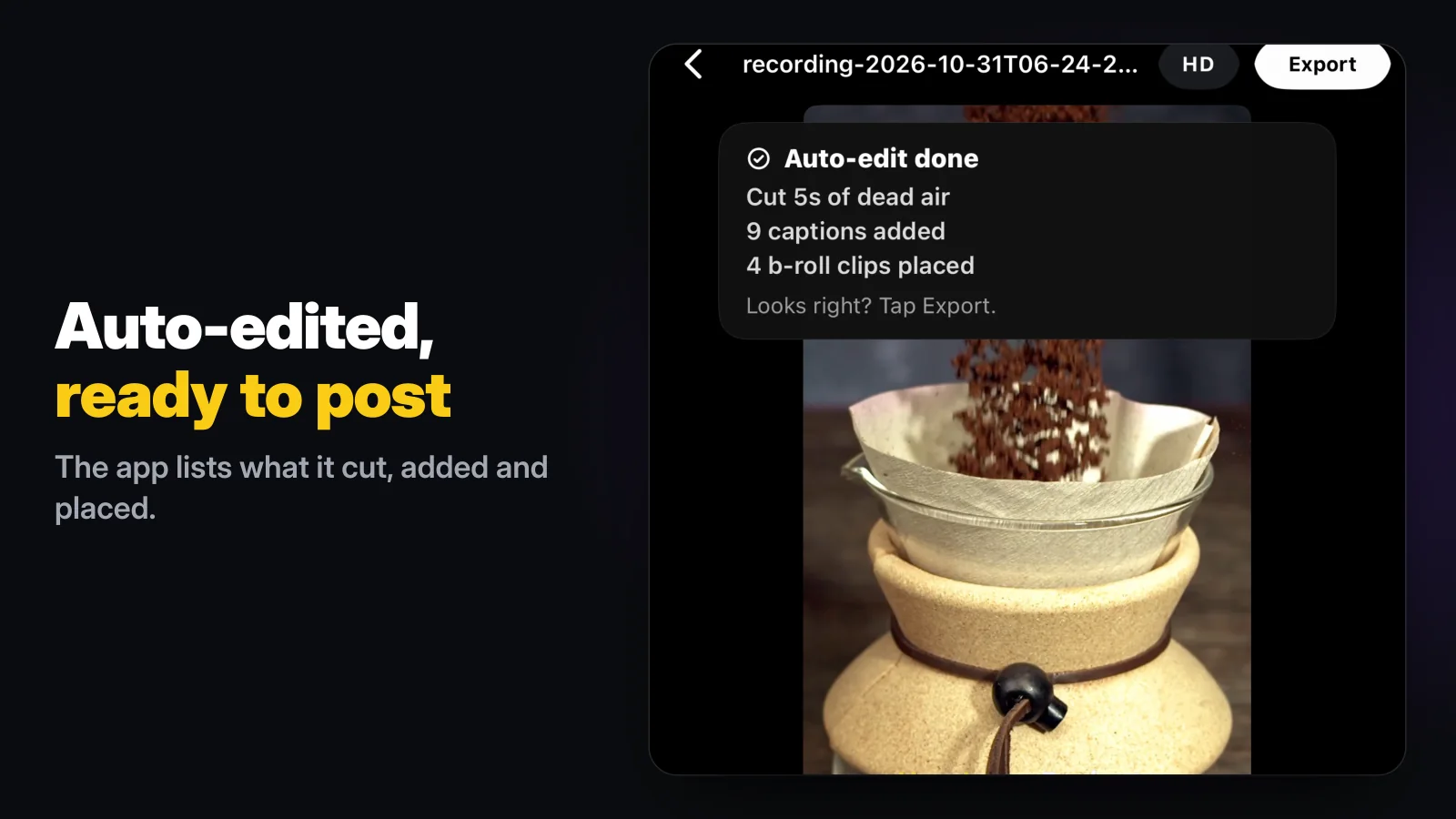
For a talking video, the dead air between sentences is often the biggest part you can lose. A worked example with our own footage: for the App Store preview we recorded a 12.1-second take about a morning routine. Opened in Wavcut with the Talking Head preset, the app reported 5 seconds of dead air cut, with every word kept. That is roughly two-fifths of the running time gone before choosing any export setting. The remove silence tool explains how it decides what counts as a pause.
How do you export a smaller video from Wavcut?
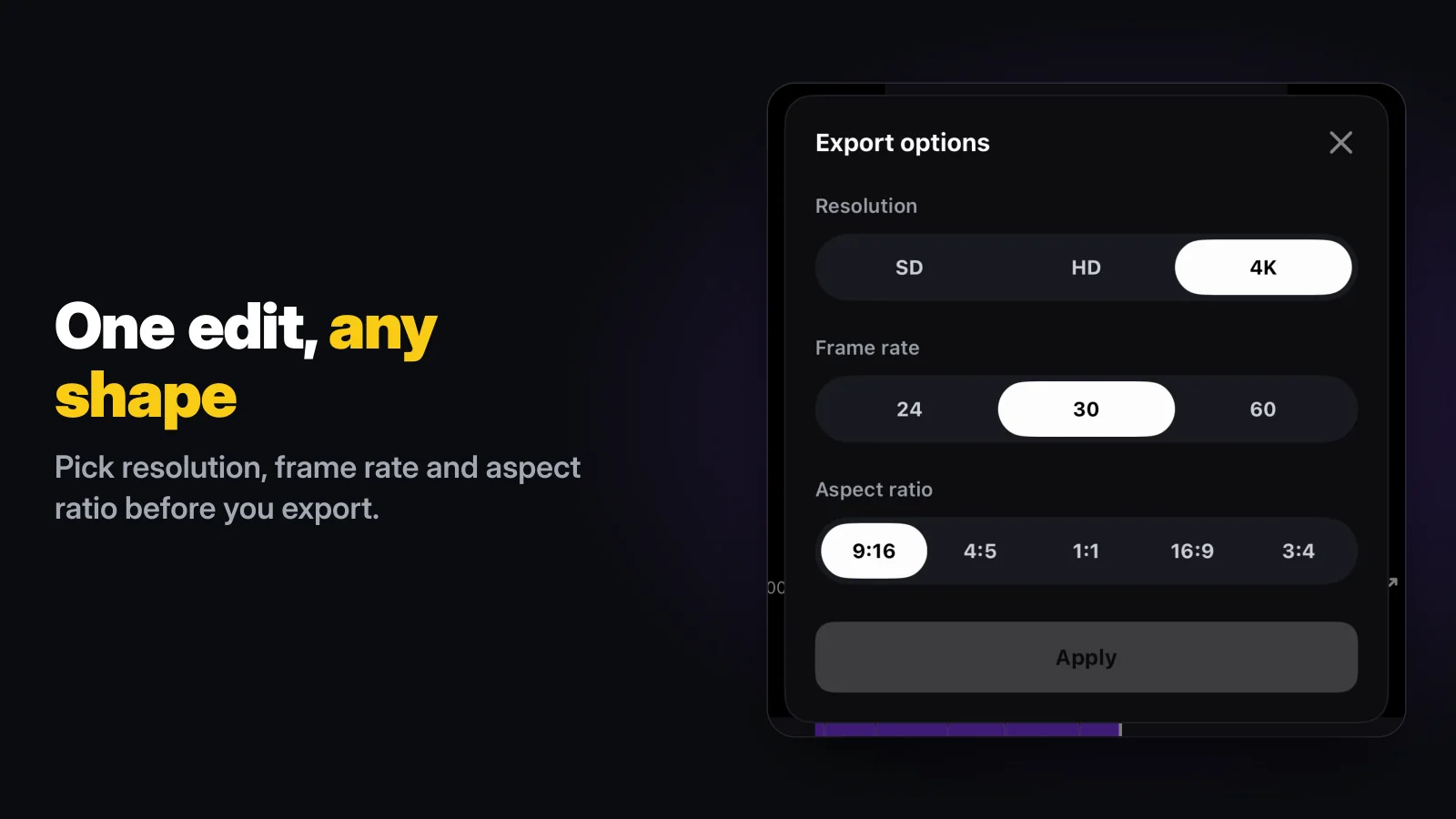
Wavcut does not have a compress button. What it has is the same two levers as above, in the editor you already cut the video in. Tap the SD, HD or 4K button next to Export to open Export options:
- Resolution: SD (720p), HD (1080p) or 4K.
- Frame rate: 24, 30 or 60. New projects start at 30.
- Aspect ratio: 9:16, 4:5, 1:1, 16:9 or 3:4. It sets the shape, not the size.
On the free plan, SD (720p) exports are watermark-free; HD and 4K carry a watermark. Export always renders the whole timeline into one video. If the vertical framing is new to you, how to make a horizontal video vertical covers the 9:16 crop.
Checked on November 26, 2026, the routes side by side:
| Camera settings | iMovie export | Wavcut export | |
|---|---|---|---|
| When | Before you record | After, on any video in Photos | After editing, in the same app |
| Resolution | Depends on your model | 720, 540, 360 and others | SD (720p), HD (1080p), 4K |
| Frame rate | 24, 25, 30, 60 or 120, by model | - | 24, 30 or 60 |
| Shorter video | - | Edit the project before export | Silence cut, split, delete |
| Price | Built in | Free | Free plan: SD clean, HD and 4K watermarked |
How do you send a long video from iPhone?
If the file is still too big for email, Mail can send it with Mail Drop, through iCloud. Apple's limits: attachments up to 5 GB, recipients have 30 days to download them, and they don't count against your iCloud storage. When a message is larger than your email provider allows, Mail asks you to use Mail Drop. The person receiving it may still have a smaller limit on their side, which is where a compressed copy helps.
What are the limits?
Wavcut is iPhone-only for now and has no speed control, and it is no replacement for a dedicated compressor when you only need a smaller file: iMovie is free and goes down to 360. Where Wavcut fits is the talking video you are editing anyway: cut the pauses, add auto captions, then export at SD and 30 fps. On Free, captions run on the phone for 3 videos a month; Pro and Max send the clip's audio for AI captions in 60+ languages. If you are comparing editors, read Wavcut vs CapCut.